
Are you ready to upgrade your mobile experience but worried about losing your precious files? Switching platforms often feels like a daunting task for many smartphone users.
You might fear that moving your contacts, photos, and messages will take hours of tedious work. Fortunately, modern technology makes this process incredibly simple and efficient.

This guide provides a professional walkthrough for anyone looking to transfer data from iOS to Samsung Galaxy devices. We focus on the most reliable methods to ensure your transition remains quick, secure, and free of errors.
By following these expert steps, you will successfully migrate your digital life without any technical complications. Let us help you get started with your new device today.
Preparing Your Devices for a Seamless Migration
Before you start to transfer data from iOS to Samsung Galaxy, make sure your devices are ready. Proper preparation helps avoid errors and keeps your files safe. Taking these steps now will save you time and trouble later.

Checking Compatibility and Software Updates
First, check if your iPhone and Samsung device have the latest software. Updates often improve how devices connect and fix bugs. Keeping your software up to date is key to a smooth transfer.
Ensuring Sufficient Battery Life and Storage
Having enough power is crucial during the transfer. Keep your battery level at least 50% on both devices. Also, make sure your Samsung Galaxy has enough space for all your photos, videos, and documents.
Backing Up Your iPhone Data
Securing your data before a big change is wise. You should automatically backup data on your device. This way, you won’t lose anything during the switch. A recent backup gives you peace of mind.
Using Samsung Smart Switch for Wireless Transfer
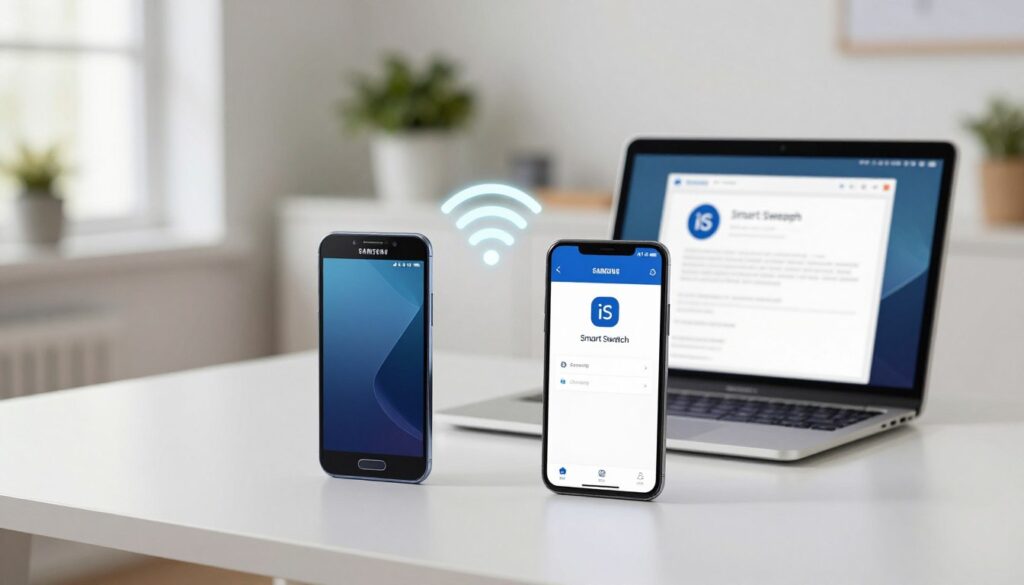
Using Samsung’s official wireless tools makes moving data from iOS to Samsung easy. This method connects your devices wirelessly, without the need for cables.
Setting Up the Smart Switch Application
The Smart Switch app is a top choice for moving data from iOS to Samsung. First, download and install it on your new Galaxy device.
Then, open the app on both your old iPhone and new Samsung phone. Follow the instructions to pair them wirelessly.
Selecting Data Categories for Migration
After pairing, the app will scan your iPhone for content. You’ll see lists of items like contacts, messages, and photos.
Choose the items you want to move to your new phone. Later, you can transfer photos from Samsung to PC easily after the initial move.
Managing Transfer Speeds and Connection Stability
A strong Wi-Fi connection is key for a smooth transfer. Keep both devices near your router to avoid signal loss.
Don’t use apps that use a lot of bandwidth while transferring. Also, keep your devices charged to avoid battery issues.
Utilizing a USB Cable for Faster Data Transfer
Choosing a physical cable connection is often the smartest way to ensure a stable data migration iOS to Samsung. While wireless options are convenient, a wired link provides a consistent flow of information. This is ideal for users with large media libraries. It minimizes the risk of interruptions during the process.
Required Adapters and Cable Specifications
To bridge the gap between your legacy iPhone and your new Galaxy device, you will need a specific cable. Most users require a Lightning-to-USB-C cable to establish a direct link. Make sure your cable is certified to support high-speed data transfer to avoid potential bottlenecks.
Establishing a Direct Connection Between Devices
Once you have the correct cable, plug the Lightning end into your iPhone and the USB-C end into your Samsung smartphone. Your Galaxy device should automatically detect the connection and prompt you to start the Smart Switch application. Following these steps ensures a smooth data migration iOS to Samsung without the need for a stable Wi-Fi network.
Verifying Data Integrity During Wired Transfers
After the physical connection is terminated, you must confirm that all files moved correctly. Open your gallery and file manager apps to check that your photos, videos, and documents are accessible. Performing this final check guarantees that your data migration iOS to Samsung was successful and that no files were corrupted during the transition.
How to Transfer Data from iOS to Samsung Galaxy via iCloud
Want to skip the cables? You can transfer data from iOS to Samsung Galaxy using iCloud. This method is a great backup for moving your files. It keeps your cloud data safe, even when you switch phones.
Syncing iCloud Data to Your Samsung Account
First, log into your Apple ID on your new Android. Many Samsung phones let you add email accounts in settings. Syncing your info brings contacts and calendar events to your new phone.
This link keeps your digital life together. Most cloud services work well with Android. It’s a smart way to keep your identity intact.
Downloading Photos and Documents from the Cloud
After linking your accounts, access your media and files online. Go to the cloud website and sign in. Then, pick the photos and documents to save on your phone.
Choosing what to download lets you control your new phone’s files. It stops your device from getting too full. This method is perfect for those who want to pick and choose what to move.
Managing iCloud Drive Files on Android
Managing files is easy once you’re connected. Use your Samsung’s browser to view, download, or share drive documents. This keeps your work files handy.
For more features, try third-party apps to sync your drive with your file manager. These apps help organize your documents. Keeping your files neat boosts your phone’s performance.
Migrating Contacts and Calendar Information
Switching to a new phone means moving your contacts and calendar events. You need a good way to transfer your personal info. Learning to move contacts from an iPhone to a Samsung helps keep your contacts and calendar up to date without typing everything in again.
Exporting Contacts via vCard Files
The vCard format is a standard for contacts. You can export your iPhone contacts to a .vcf file using iCloud on your computer. Save the file, then upload it to Google Drive or email it to yourself.
On your new Samsung Galaxy, open the Contacts app. Choose to import and pick the vCard file. This way, all your contacts, including emails and addresses, will be there right away.
Syncing Google Accounts for Seamless Integration
Linking your Google account to your iPhone settings is a hands-off way to transfer data. Go to the Mail, Contacts, and Calendars section in your iOS settings. Turn on the sync for your Google account to move your data to the cloud.
Sign in with the same Google account on your Samsung. Your data will show up automatically. This method is like a data transfer app for iOS to Samsung, keeping your schedule in sync. It avoids the need for file transfers and keeps your calendar current.
Troubleshooting Common Syncing Errors
Sometimes, data might not show up on your new phone. First, check your internet connection and make sure you’re logged into the right account. A simple restart of the sync settings can fix small issues.
If some contacts or events are missing, check your account settings. Make sure sync is turned on for all types of data. Clearing the cache of your contacts app can also help. These steps help make sure your data moves over correctly.
Moving Your Media Library and Photos
Your media library holds your most precious memories. Moving it to a new device is crucial. The process is similar to transferring contacts from an iPhone to a Samsung, keeping your data organized.
Transferring Photos and Videos via Smart Switch
Samsung Smart Switch is the best tool for moving lots of media. It keeps your files’ quality and important details during the move.
Just connect both devices and pick the images and videos in the app. This way, your photos stay organized on your new phone.
Using Google Photos for Cloud-Based Migration
Google Photos is great for a wireless media transfer. It uploads your photos to the cloud, so you can see them on any device with internet.
This method also backs up your important files. After syncing, you can use the Secure Folder to protect your photos.
Handling Non-Compatible Media Formats
HEIC or HEVC files might not work on all Android apps. These formats are common on iOS but can cause problems on other devices.
To fix this, make sure your device settings convert these files to JPEG or MP4. If issues persist, use third-party tools to change the files for your new system.
Handling Messages and Chat History
Keeping your digital talks safe is key when switching from an iPhone to a Samsung Galaxy. Whether it’s personal chats or work messages, having them all in one place is reassuring.
Transferring SMS and MMS Messages
The Samsung Smart Switch tool is the best way to move your texts. Make sure to pick the messages option when you connect your phones.
This tool grabs your SMS and MMS chats from your old phone. Your chats will stay in order and easy to find on your new device.
Migrating WhatsApp Chat History
WhatsApp has a built-in feature to move your chats safely between phones. Start this from your iPhone’s WhatsApp settings.
Just follow the steps to get your data ready for the move. Then, sign into WhatsApp on your new phone. It will find and restore your chats without a hitch.
Limitations of Cross-Platform Messaging Transfers
Remember, there are some limits when switching phones. Some encrypted files or app histories might not make the trip.
Make sure your messaging apps are up to date before you start. Knowing these limits helps you prepare for a smooth transition.
Managing App Data and Third-Party Applications
When you switch from an iPhone to a Samsung Galaxy, apps don’t move on their own. This is because iOS and Android have different ways of organizing files. You need to set up your apps on the new device yourself to make sure they work right.
Identifying Equivalent Android Applications
Most apps have versions for both iOS and Android. Check the Google Play Store for the Android versions of your favorite apps. If you can’t find an app, look for top-rated alternatives that offer similar features.
Reinstalling Apps via the Google Play Store
After finding the apps you need, start installing them. Open the Google Play Store on your Samsung and search for each app. Tap install to download and add them to your home screen. Make sure you have a good internet connection for faster downloads.
Restoring In-App Purchases and Account Data
After installing your apps, log into your accounts to get back your saved progress. Many apps save your data on their servers, so you can pick up where you left off. Remember, in-app purchases tied to your account will usually work again when you log in with your original credentials.
Transferring Music and Audio Files
Switching your music from an iPhone to a Samsung needs a good plan. A clear strategy keeps your playlists and favorite songs safe. Doing a good iTunes to Samsung transfer makes your music easy to find on your new phone.
Moving iTunes Library Files to Samsung
First, change your music files to formats Android likes, like MP3 or AAC. Use your desktop music app to convert files if needed. Then, these files are ready for a smooth transfer to your new phone.
Using Streaming Services for Music Portability
Streaming services like Spotify, Apple Music, or YouTube Music are easy to use. They let you access your music on different devices. Just log into your account on your Samsung Galaxy, and your music will show up.
This way, you don’t have to move files yourself or sync them all the time. Your music stays up to date, no matter the device. You can listen to your favorite songs right away, without worrying about space or file types.
Manual File Transfer via Computer
If you like to manage your files yourself, use a computer. Connect your Samsung to your computer with a good USB cable. Then, you can move your music folders to your phone’s storage.
This method lets you control your music library. Make sure to put your files in the right music folder. After moving your files, safely disconnect your device and enjoy your music anywhere.
Addressing Common Challenges During Migration
Even with the best tools, you might still face some issues. Technical problems can pop up, but most can be fixed quickly. Knowing how to handle these problems is key to a smooth iPhone data transfer to Samsung.
Resolving Connection Timeouts
Connection timeouts happen when your network is unstable or cables are loose. If your transfer stops, make sure your devices are near your router. Also, turn off power-saving modes to keep your connection stable.
Dealing with Incomplete Data Transfers
If some files don’t transfer, check if your new device has enough space. An iPhone data transfer to Samsung might stop if your new device is full. Clear out old files and try again to get all your data.
Managing Duplicate Files After Migration
Migration can sometimes create duplicate files. Use your device’s file management tools to find these. Regularly checking your storage keeps your device tidy after the transfer.
Post-Transfer Optimization for Your Samsung Galaxy
Finishing your iPhone data transfer to Samsung is just the start. After moving your files, it’s time to make your new device your own. Personalizing your interface ensures a smooth transition.
Organizing Your Home Screen and Widgets
The Android interface is highly customizable. You can organize apps into folders for easy access. Adding widgets for your calendar, weather, or email keeps you updated without opening apps.
Arrange your favorite tools on the main screen. This makes your daily use faster and more efficient. A tidy layout helps you stay focused on your tasks.
Configuring Security and Biometric Settings
Keeping your data safe is crucial after switching devices. Go to the security menu to set up fingerprint or facial recognition. These features make unlocking your phone quick and secure.
Also, check your app permissions. Make sure only needed apps have access to your location or contacts. Good security habits protect your data on your new device.
Updating Applications for Optimal Performance
Even with a successful transfer, some apps might need updates for Android. Open the Google Play Store to check for updates. Running the latest versions prevents crashes and boosts performance.
Don’t forget to update your system firmware too. Keeping your software current means you get the latest features and security. An updated device runs smoothly and offers the best experience.
Conclusion
Moving from an iPhone to a Samsung Galaxy is doable if you know the steps. You now have the skills to switch with confidence. Using Samsung Smart Switch and cloud services keeps your data safe. This way, your contacts, photos, and messages stay with you. It’s a smart move to protect your personal info while enjoying your new phone.
Customizing your phone is the next step. Dive into Android’s features to make the most of your new device. You’ve made the switch and are ready for a better mobile experience.
Don’t forget to share your experience with others. Your feedback helps others upgrade their phones smoothly. If you hit any bumps, don’t hesitate to ask for help.