
Do you get annoyed by constant pop-ups on your phone? Many people face annoying interruptions while using their devices. These pop-ups often come from harmful software or settings that take over your screen. It’s important to know how to stop pop-up ads on your Samsung phone. This keeps your device running smoothly and safely. This guide will show you how to remove unwanted software and block harmful sites.
You’ll learn expert ways to clean your device and keep your privacy safe. Just follow these easy steps to make your phone work better. Taking these steps today will make your device faster and more reliable for all your needs.
Understanding Why Pop-Up Ads Appear on Your Samsung Device
To stop pop-up ads on your Samsung phone, you need to know where they come from. These ads often pop up because of browser cache or apps you’ve installed. Knowing the source helps you keep your device clean and your experience better.
Distinguishing Between System Notifications and Malicious Ads
It’s important to tell the difference between real system alerts and fake ads. Samsung sends safe updates and security patches through the settings menu. These are good for your device.
But, malicious ads look like real warnings to trick you. They try to look like system messages to fool you. Knowing the difference is key to avoiding unwanted ads on your Samsung phone.
Common Sources of Unwanted Pop-Ups
Most ads come from websites or apps with aggressive ad networks. Free apps might ask for too many permissions, showing ads over other apps. This is why people want to block these ads on their Samsung phones.
Browser pop-ups are another problem. If a website gets permission to send notifications, it can fill your screen with ads. Clearing your browser cache and checking app permissions can help stop these ads for good.
How to Stop Pop-Up Ads on Samsung Phone via Browser Settings
Browsers are often the first place you see annoying ads. These ads can pop up and slow down your phone. Learning how to block pop-up ads on your Samsung phone is key to a better browsing experience.
Configuring Samsung Internet for Maximum Ad Blocking
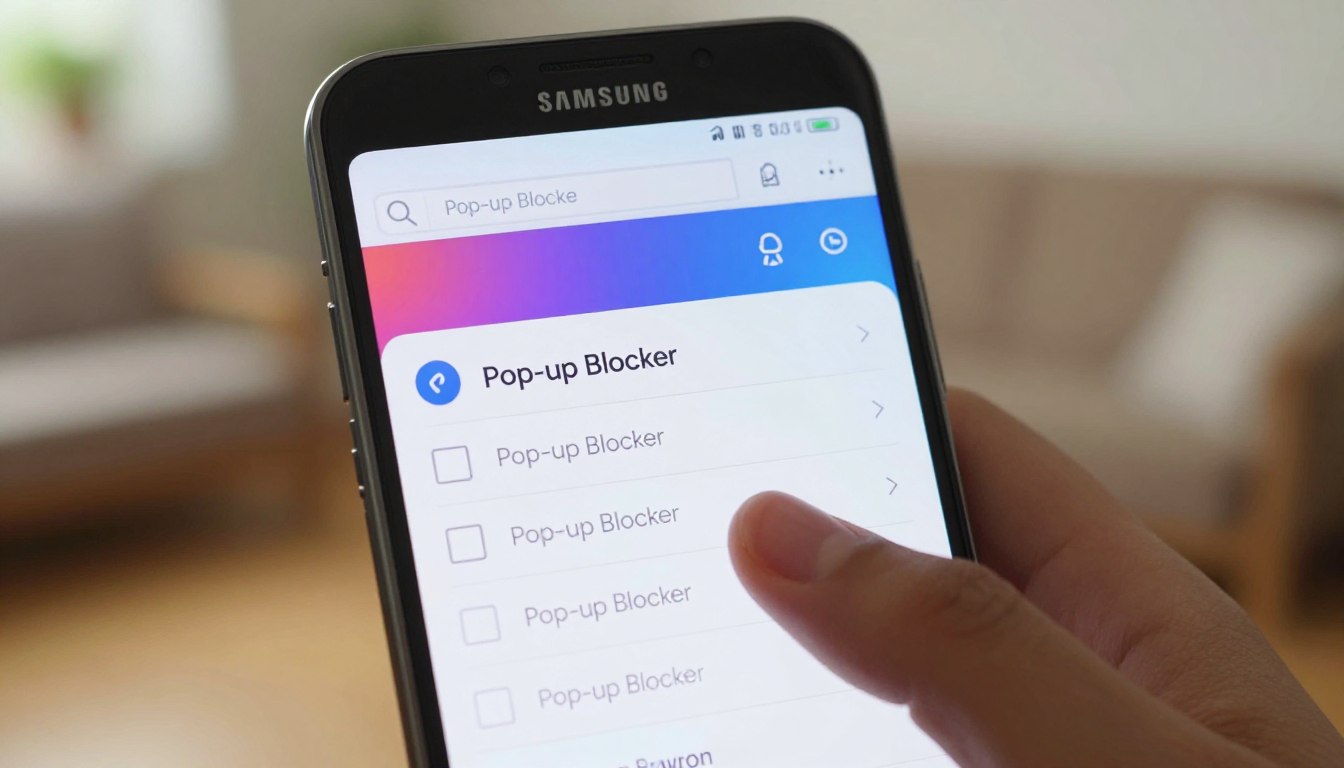
Samsung Internet has tools to block unwanted content. Open the browser and tap the three-line menu icon in the bottom right. Then, select “Ad blockers” to see recommended extensions.
Download and install a good ad-blocking extension from the list. Make sure the toggle is turned on. This step blocks pop-up ads on your Samsung phone without extra software.
Adjusting Google Chrome Settings to Prevent Redirects
Google Chrome also has features to manage your privacy and block ads. Open Chrome and tap the three-dot menu in the top right. Then, select “Settings.” Go to “Site settings” and find “Pop-ups and redirects.”
Make sure the pop-up toggle is set to “Blocked.” This keeps unwanted windows off your screen. These steps help you disable pop-up ads on your Samsung phone and enjoy a cleaner browsing experience.
Managing App Permissions to Eliminate Intrusive Advertising
Securing your Samsung device against unwanted ads starts with managing app permissions. Many apps ask for too much access, leading to ads popping up when you’re not using them. By checking these settings, you can learn how to block pop-up ads on your Samsung phone.
Identifying Apps with Excessive Permissions
To begin, go to your device settings and open the Apps menu. Look for the Permission Manager to see which apps have access to your location, microphone, or storage. Be cautious of simple apps like flashlights or calculators that ask for your contacts or call logs.
Apps with too many permissions might be collecting data for ads. If an app’s permissions don’t match its purpose, it’s likely causing your trouble. Finding these apps is the first step to improving your experience.
Revoking Permissions for Suspicious Applications
After spotting a suspicious app, you can take away its access. Tap on the app in your settings and go to the Permissions tab. There, you can turn off any access that seems too much or intrusive.
Turning off these permissions usually stops the annoying pop-ups. If the app still bothers you after limiting its access, it’s time to remove it. Keeping a close eye on your app permissions keeps your device free from unwanted ads.
Removing Malicious Applications That Cause Pop-Ups
Your Samsung device might have apps that look harmless but are actually harmful. These apps can sneak past security checks. They run quietly in the background, causing annoying ads that ruin your experience. Learning how to remove these ads is key to making your device work right again.
Recognizing Signs of Adware on Your Samsung Galaxy
Adware often shows up as a sudden battery drain. If your phone gets hot without being used, it might be a sign of trouble. Also, watch your data usage for any sudden jumps.
Be wary of apps with no clear icon or generic names. If apps you don’t remember downloading show up, they’re likely bad. Getting rid of these apps is the first step to take back your device.
Safe Mode Troubleshooting for Persistent Ads
Safe Mode is a great tool when regular removal doesn’t work. It turns off all third-party apps, helping you find the source of ads. If ads stop in Safe Mode, you know the problem app is recent.
To get into Safe Mode, turn off your device and hold the volume down button while starting it again. In Safe Mode, go to settings to remove any suspicious apps. If your device still acts weird, you might need to do a soft reset to fix temporary problems.
By following these steps, you can get rid of annoying ads on your Samsung device. Removing these threats keeps your data safe and your phone running smoothly. Regularly check your apps to stop these problems from coming back.
Utilizing Samsung Device Care to Optimize Performance
Your Samsung device has tools to keep it running well. These tools help manage your device’s health without extra software. This method is great for removing pop-up ads, keeping your screen clean and fast.
Running Security Scans with McAfee Integration
Samsung uses McAfee to scan for threats in Device Care. Running these scans often helps find and remove malware. This can stop unwanted ads.
When the scanner finds something, act fast to remove it. This keeps your phone safe from adware. Regular scans are key to a secure phone.
Clearing Cache and Temporary Files to Stop Ad Triggers
Your phone collects cache files over time. These files can lead to pop-ups. The storage tool in Device Care helps clear these files.
Deleting these files regularly blocks ads. It also frees up space and stops ad tracking. Keeping your cache clean boosts your phone’s speed and privacy.
Configuring DNS Settings to Block Network-Level Ads
You can stop pop-up ads on your Samsung device by changing your DNS settings. This method acts like a digital filter, blocking ads before they reach your browser or apps. It reroutes your traffic through a special server, making it harder for ads to get through.
Understanding Private DNS and Ad Blocking
Private DNS lets your phone connect to a specific server for domain name resolution. With a standard provider, your device just finds the IP address for every website. But, a custom DNS service can block requests to known ad networks.
This method is very effective because it works for your whole internet connection, not just one browser. It stops unwanted pop-ups on your Samsung phone by not letting it connect to ad servers. So, your device never gets the data to show those annoying ads.
Setting Up AdGuard DNS on Your Samsung Phone
To start, open your phone’s Settings menu and go to the Connections tab. Choose “More connection settings” and tap on “Private DNS.” You’ll see a field to enter a custom provider hostname.
Enter “dns.adguard.com” in the box and save your changes. After applying this setting, your phone will start using AdGuard to filter your traffic. This simple change adds a lot of protection, making your mobile experience smoother and safer.
Advanced Security Measures to Prevent Future Pop-Ups
Keeping your phone safe from annoying ads is key. By being proactive, you can stop pop-up ads on your Samsung device. This keeps your personal info private. These steps are more than just basic settings to protect your mobile.
Keeping Your Android OS and Security Patches Updated
Updating your Android OS is crucial. These updates often include security fixes that block adware. If updates cause problems, you might need to fix samsung android driver errors to get your device recognized.
Always look for the latest software version in your settings. Keeping your firmware up-to-date means your device has the latest protection. This simple habit keeps your system safe and stable.
Avoiding Sideloading Apps from Unverified Sources
Sideloading means installing apps from outside the Google Play Store. These sites often have malware disguised as useful tools. By using official stores, you lower the risk of getting adware.
If you need to install an app, check its reputation and developer first. Keeping your app collection clean is the best way to block pop-up ads on Samsung devices. Always choose security over the ease of getting unofficial apps.
When to Consider a Factory Reset for Persistent Adware
If adware keeps coming back, a factory reset might be your last option. Some malware gets stuck deep in your phone’s system. This step is usually the best way to get rid of persistent ads on Samsung phones.
Backing Up Your Data Before a Full Reset
First, make sure to save your personal stuff. A factory reset will clear everything on your phone, like photos and messages. Use Samsung Cloud or Google Drive to back up your data.
Or, you can connect your phone to a computer to move files manually. A USB cable helps transfer important files to an external drive or your computer. This way, you won’t lose your files during the reset.
Executing a Factory Data Reset on Samsung Devices
After backing up your data, start the reset. Go to your phone’s Settings and choose General Management. Then, tap on Reset to see your options.
Choose Factory Data Reset and enter your security code. Your phone will restart and erase all data and settings. This is the best way to remove ads from your Samsung phone and get it back to normal.
Conclusion
You now have the power to take back your digital space from annoying ads. By using these tips, you can make your Samsung Galaxy a better tool for everyday tasks.
Keeping your phone clean is key to avoiding unwanted ads. Check your app permissions often and update your Android regularly. These steps help keep your phone safe and fast.
By taking care of your digital space, you protect your personal info from harm. Tell your friends or family about these tips if they deal with too many ads. A cleaner phone is better for everyone in the Samsung world.
Be careful where you download things to keep your phone free from ads. Your phone works best when you focus on safety and speed. Enjoy a quick and ad-free experience every time you use it.