
Have you ever faced the frustration of a phone that simply won’t accept power? A dead smartphone can feel like a nightmare, especially when your device is crucial for daily tasks. If your Samsung Galaxy is struggling to charge, you’re not alone. Many users encounter this issue, but the good news is that there are effective solutions.
In this guide, you will discover the most common reasons behind your device’s charging troubles. From simple debris in the charging port to faulty cables, we’ll explore various fixes that can help you diagnose and resolve the problem quickly. Whether you’re dealing with a software glitch or need to clean your port, we’ll provide step-by-step instructions to get your phone back to life.
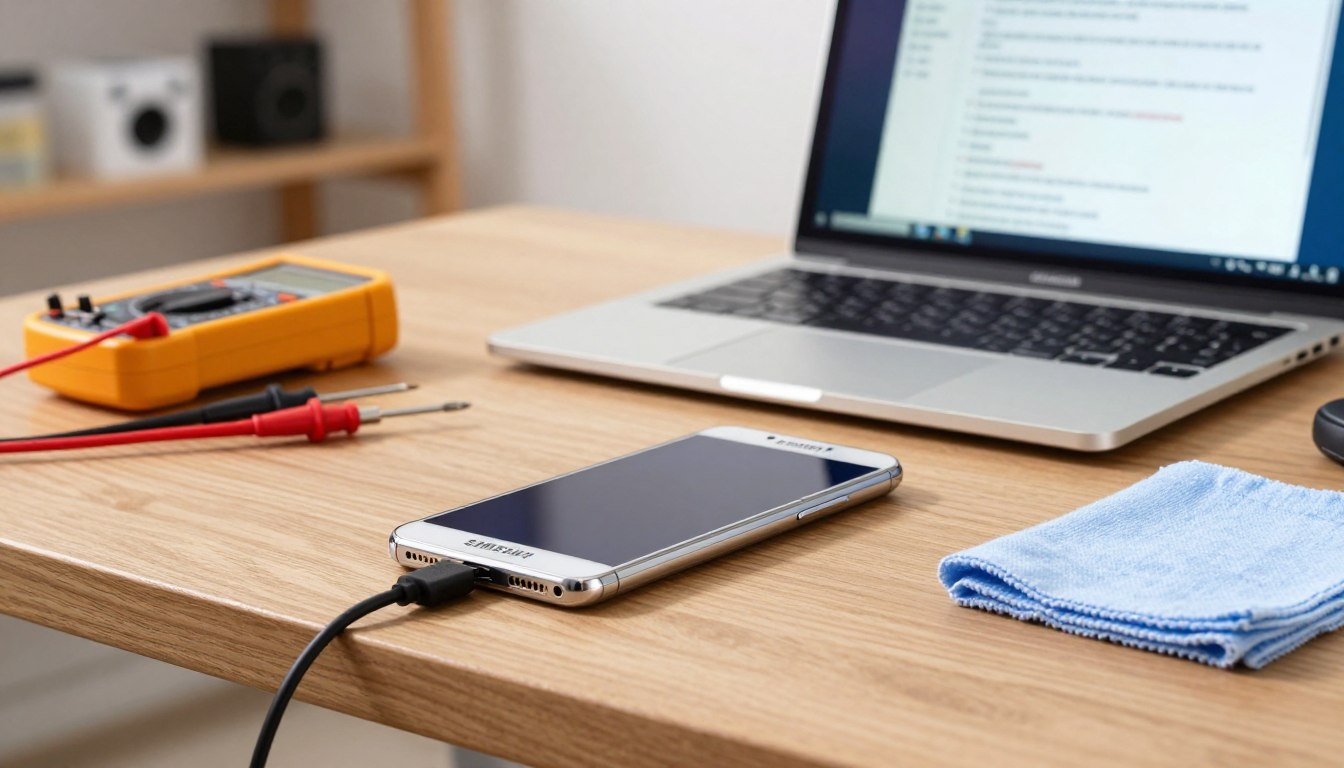
By the end of this article, you’ll have a clear understanding of how to tackle the charging issues and restore your device to full functionality. Let’s dive in and find the solution to your charging dilemma!
Understanding Why Your Samsung Galaxy Is Not Charging
Experiencing issues with your phone’s ability to charge can be incredibly frustrating. Several factors may contribute to these problems. Understanding the common causes can help you identify the root of the issue and take appropriate action.
Common Causes Behind Charging Problems
Charging issues can arise from multiple sources. A faulty cable, a damaged charging port, or even software bugs may be to blame. Additionally, a degraded battery that no longer holds a charge can lead to significant frustration.
One of the most common causes is lint and debris accumulation inside the USB-C port. This buildup can prevent the cable from making proper electrical contact, interrupting phone charging entirely.
Moisture detection is another built-in safety feature on these devices. If water or excessive humidity is detected in the charging port, the system automatically blocks charging. This precaution helps prevent short circuits and corrosion damage.
Using low-quality or non-approved chargers and cables can also lead to slow charging or even no charging at all. Incompatible power delivery protocols can create issues that disrupt your phone’s ability to charge effectively.
Identifying Your Device’s Charging Behavior
Your device’s temperature plays a critical role in its charging behavior. If the phone is too hot or too cold, the battery management system may throttle or suspend charging to protect internal components.
Recognizing the signs of a hardware issue versus a software problem is essential. Hardware issues often manifest as physical damage to the port, bent pins, or a loose cable connection. On the other hand, software issues may prevent the phone from recognizing the charger, even when the port is clean.
Recognizing Signs of Hardware or Software Issues
If your galaxy phone only charges when you wiggle the cable or hold it at a specific angle, it likely suffers from a worn-out charging port or a damaged cable connector. Both scenarios require inspection and possible replacement.
Software-related charging problems can occur after a system update or app installation. These issues may cause the battery to drain faster than it can charge, making it appear as though the device is not charging at all.
Lastly, consider the age of your battery. Over time, lithium-ion batteries lose capacity and may fail to accept a charge, especially after numerous charge cycles. Identifying these signs early helps you narrow down the root cause and apply the correct fix without wasting time on ineffective solutions.
How to Fix Samsung Galaxy Not Charging: Step-by-Step Troubleshooting
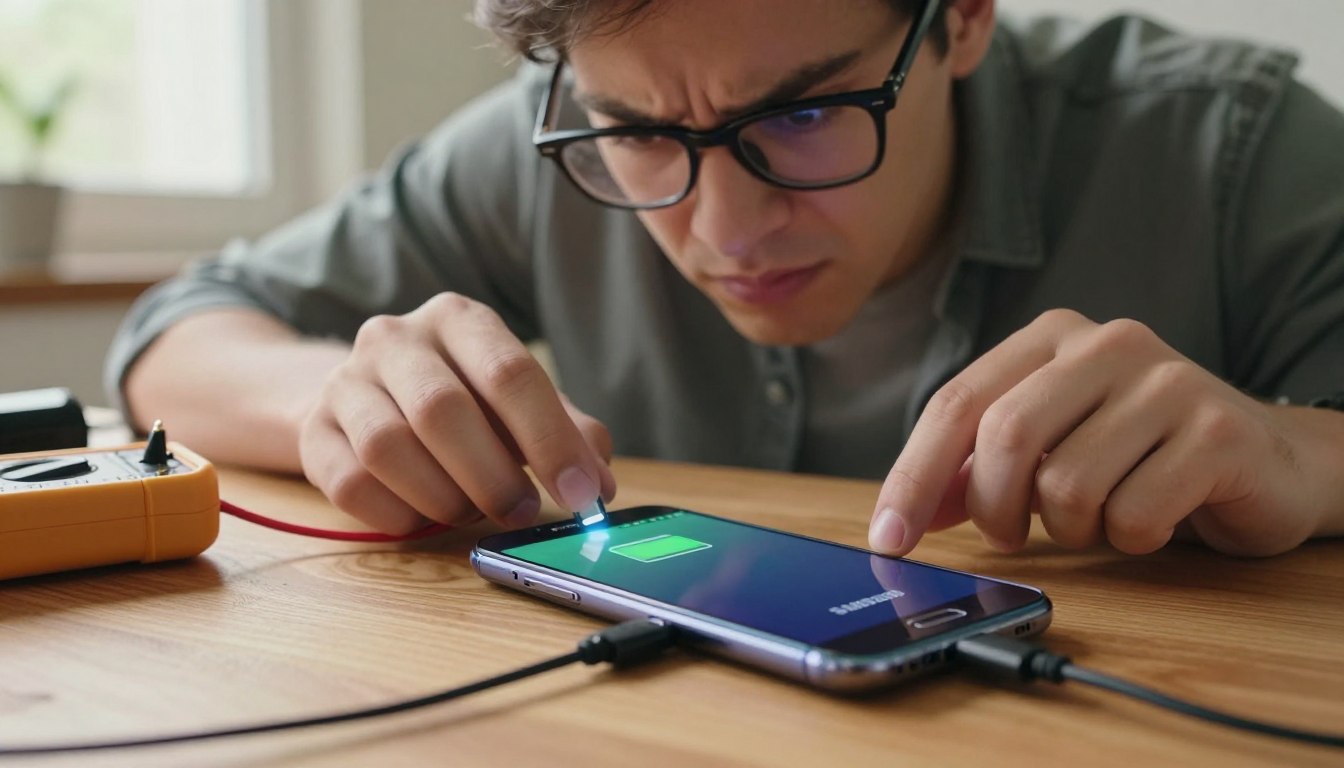
Is your phone refusing to take a charge when you need it most? You can follow some straightforward steps to identify and resolve the issue. Start by examining the USB-C charging port for any debris or moisture that may be obstructing the connection.
Check the USB-C Charging Port for Debris or Moisture
Begin troubleshooting by closely inspecting the USB-C charging port on your device. Use a flashlight and, if available, a magnifying glass to spot any accumulated debris, lint, or signs of moisture that could be blocking the connection.
If you find debris inside the port, use a fine toothpick or a can of compressed air to gently dislodge and remove it. Be extremely careful not to bend or damage the delicate pins inside the charging port.
Moisture in the charging port is another common problem. If your device was recently exposed to water or high humidity, Samsung’s One UI will display a moisture detection warning and block charging until the port is completely dry.
To dry the port, gently shake the phone to expel any liquid, wipe the exterior with a soft cloth, and leave the device in a well-ventilated area for several hours before attempting to charge again.
Test Different Chargers, Cables, and Power Outlets
Testing different combinations of chargers, cables, and power outlets is a critical step. A faulty wall adapter or a frayed cable is often the real culprit behind a phone that refuses to charge. Swapping them out can quickly resolve the issue.
Try different USB-C cables and power adapters, including ones you know work with other devices. Also, test multiple wall outlets to rule out a tripped circuit or a defective outlet as the source of the problem.
Pay attention to the charger’s wattage; for most devices, at least 10 watts is recommended. Using an underpowered adapter may result in slow charging warnings or no phone charge at all.
Try Wireless Charging If Supported
If your phone supports wireless charging, place it on a Qi-compatible wireless charger to see if it charges without using the USB-C port. This test helps you determine whether the problem lies with the charging port itself or elsewhere in the device.
Wireless charging is also a useful workaround while you troubleshoot the wired charging issue. It allows you to keep your phone powered on and functional without delay.
Document what you test and the results at each step. This systematic approach saves time and helps you identify the exact cause of the charging problem before moving on to more involved fixes.
Inspecting and Cleaning Your Charging Port and Accessories
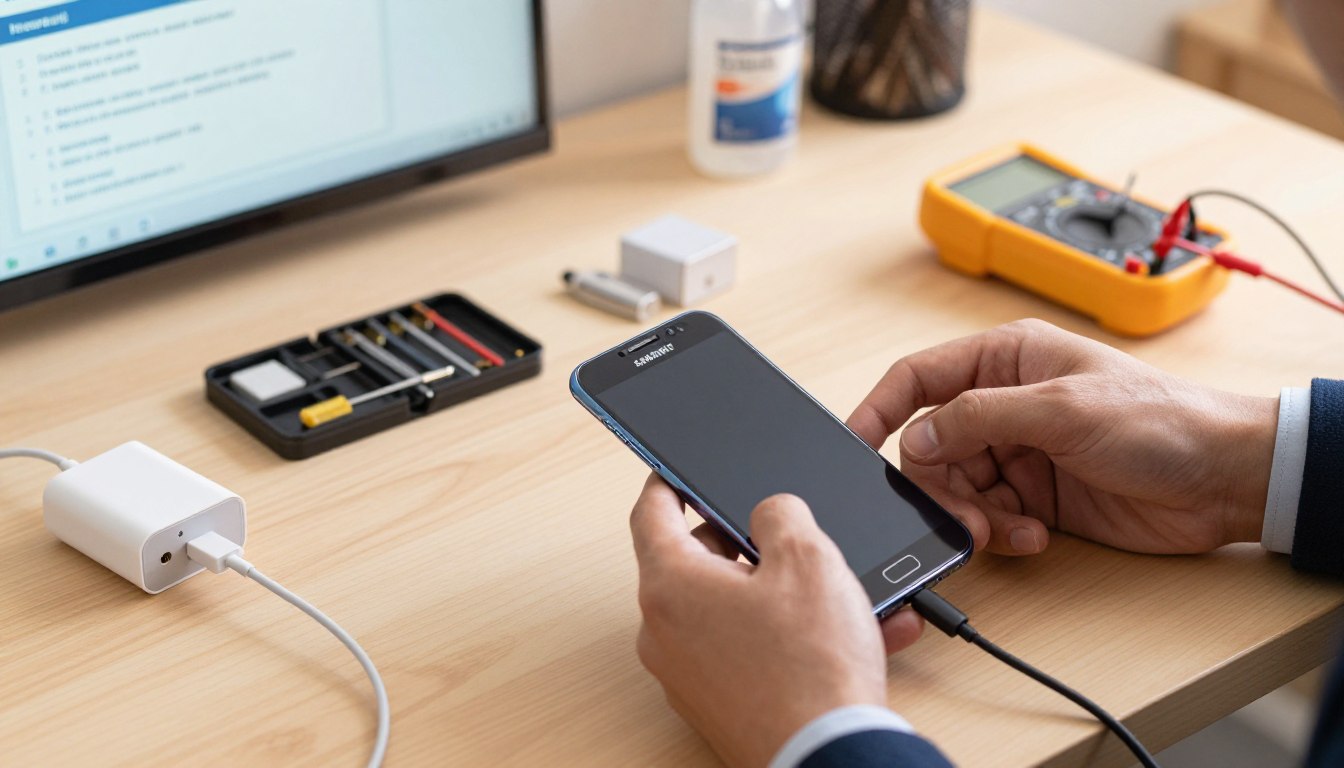
Is your device struggling to connect and receive power? The first step is to inspect the charging port and accessories thoroughly. A clean and functional port is crucial for proper charging. Over time, lint and debris can accumulate, leading to connection issues.
Using a flashlight and magnifying glass can help you see the port clearly. Look for compacted lint, dust, or any debris that may have been pushed deeper into the port through repeated cable insertions. If the USB-C cable does not fit snugly or feels loose, cleaning may be necessary.
Using a Flashlight and Magnifying Glass for Inspection
Perform a thorough visual inspection of the charging port. Ensure that the USB-C plug sits flush against the bottom edge of your phone. If it feels wobbly or only charges at a specific angle, debris is likely obstructing the connection.
Safely Removing Debris with Toothpicks and Compressed Air
To remove debris, use a wooden or plastic toothpick—never metal. Carefully scrape along the inner walls of the charging port to dislodge compacted lint and debris. Avoid touching or bending the central plastic tongue and surrounding pins.
If you encounter stubborn debris, you can shave down a toothpick to create a thinner tool that fits into the narrow crevices. Additionally, compressed air is effective for blowing out loosened particles. Use short bursts while holding the can upright to prevent moisture from entering the port.
Replacing Damaged or Corroded Charging Cables and Adapters
After cleaning, test the charging port again with a known-good cable and charger. Inspect your charging cables and power adapters for signs of damage, such as frayed insulation or bent connectors. Long-used cables are prone to internal wire breakage, especially near the connectors.
If your cable only works when positioned a certain way, it’s time to replace it with a new, high-quality USB-C cable. Corroded contacts can increase electrical resistance, leading to slow charging and excess heat generation. Replacing damaged accessories is often the simplest solution.
Software Fixes to Improve Charging Performance
Is your device failing to charge efficiently despite being plugged in? If so, software solutions may be the key to resolving the issue. Here are some effective methods to enhance your phone’s charging performance.
Force Restart Your Device
A force restart is one of the most effective software fixes for charging issues. To perform this, press and hold the Power and Volume Down buttons simultaneously for 10 to 20 seconds until the Samsung logo appears. This action clears temporary system memory and resolves minor software glitches.
This combination also works even when your phone screen is unresponsive. A simple reboot can restore normal charging behavior without any data loss or changes to your settings.
After the device restarts, plug it in immediately to check if charging resumes. Often, a successful force restart resolves issues where the operating system fails to recognize the connected charger.
Check Battery Usage and Uninstall Problematic Apps
Next, navigate to the battery menu in your device settings. Here, you can review which apps are consuming the most power. Poorly optimized or recently updated apps can drain the battery faster than the charger can replenish it, creating the illusion of a charging problem.
Uninstall any apps that appear in the overlap of high battery usage and recent updates. During this testing period, consider using browser versions of these apps to maintain access to essential services.
Enable Fast Charging Features in Settings
Enabling fast charging features in the settings menu is crucial. Go to Settings, select Battery, then Charging settings, and toggle on both Fast charging and Fast wireless charging. This ensures your device draws the maximum safe power from compatible chargers.
Keeping your phone’s operating system and all installed apps updated is equally important. Software updates often include bug fixes and optimizations that improve charging performance and battery management.
Check for system updates by going to Settings, tapping Software update, and selecting Download and install. An outdated system can contain bugs that interfere with the charging port’s functionality.
Regularly monitoring the battery usage data in the settings menu helps you proactively identify problematic apps before they cause significant charging disruptions. This approach saves you time and frustration in the long run.
Advanced Solutions: Hardware Repairs and Replacements
If your device has gone through all the cleaning and software fixes without improvement, it may be time to consider hardware repairs. Issues with the charging port or internal components could be the root of the problem. Understanding when to replace these parts can save you time and frustration.
When to Replace the Charging Port or Daughterboard
Inspect the charging port closely using a flashlight. Look for bent or broken pins, signs of corrosion, or any visible damage. If you see any damage, the port may no longer establish a reliable electrical connection with your charger.
Liquid damage is another common issue, even in water-resistant devices. Moisture can seep into the port and corrode the contacts, leading to potential short-circuits. If you suspect water damage, a professional repair may be necessary.
Replacing the charging port daughterboard is often the most effective solution. Ensure you purchase a replacement that matches your exact model, as these components frequently include networking parts. Using the wrong board can disrupt your phone’s service.
Considering Battery Replacement Options
Battery degradation is a common cause of charging problems. If your device is more than two or three years old and the battery struggles to hold a charge, a replacement may restore normal functionality. This simple fix can extend the life of your device significantly.
Most authorized repair centers can replace your battery quickly, often within the same day. The total cost typically does not exceed $100, which is a much more economical option than purchasing a new phone.
Seeking Professional Repair Services and Support
Before proceeding with repairs, check your device’s warranty status. If your phone is still covered, repairs may be performed at no cost. When seeking professional support, always choose authorized service centers or reputable third-party repair shops. These places use genuine parts and offer warranties on their work, ensuring the best outcome for your device.
Using a wireless charger can also be a temporary or permanent workaround if the charging port is damaged. This option allows you to continue using your device without interruption while you decide on repairs.
Conclusion
In conclusion, most issues related to phone power can be addressed without resorting to costly repairs. If your device is struggling to charge, various methods can help restore its functionality. From cleaning the USB-C port to trying different adapters and cables, the solutions range from simple to advanced.
For more complex problems, you might need to consider replacing the charging port or battery. Fortunately, professional repair costs typically remain under $100, a small price compared to buying a new device.
With the right knowledge and tools, you can effectively tackle any charging problem. Regular maintenance, such as inspecting and cleaning the charging port, can prevent many issues from arising in the first place.