
Have you ever wondered how to set up voicemail on your Galaxy S26? You’re not alone! Many users find themselves needing assistance with this essential feature. Voicemail is crucial for staying connected, ensuring you never miss important messages from family, friends, or colleagues.
This guide is designed to walk you through the entire process, making it simple and straightforward. You will learn how to configure both traditional voicemail and the advanced Visual Voicemail feature. With clear instructions, you’ll be able to prepare your device, contact your carrier, and even record a personalized greeting.
By the end of this article, you will have a fully functional voicemail system tailored to your preferences. So, let’s dive in and discover how to make the most of your voicemail experience!
Introduction to Voicemail on Galaxy S26
Have you ever considered the importance of voicemail in modern communication? This feature plays a crucial role in how you stay connected with others. It acts as a digital answering machine, capturing audio messages when you cannot answer a call. This ensures that you never miss vital communications.
The voicemail functionality on your Samsung device integrates smoothly with the Phone app. This creates a centralized hub for managing missed calls and recorded messages. You can access everything you need in one convenient location.
Modern voicemail services on the Galaxy S26 include traditional audio voicemail. This requires you to dial in to listen. However, there is also the advanced Visual Voicemail option. This feature displays a list of messages directly on your screen, allowing for easier management.
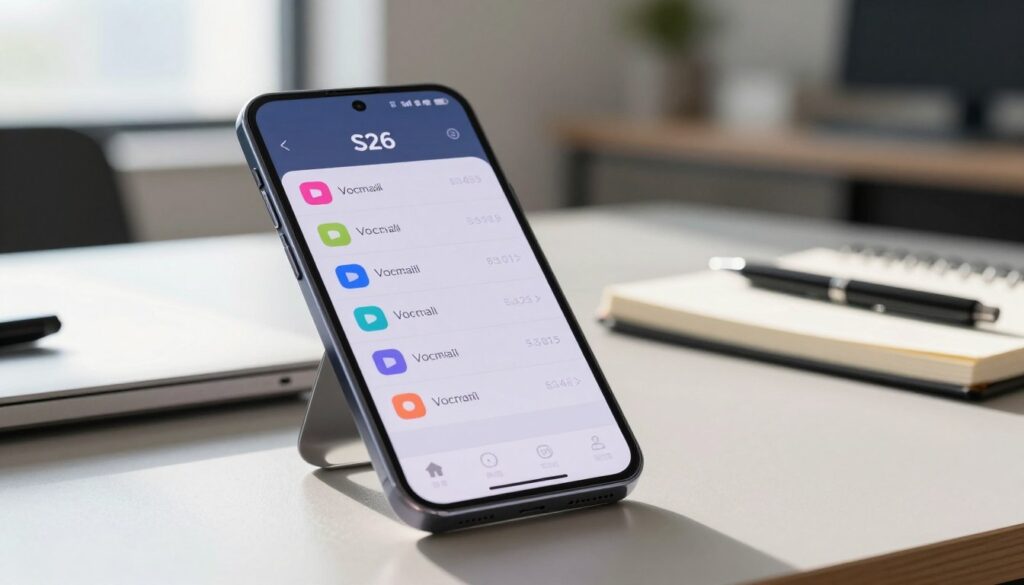
Visual Voicemail transforms how you interact with your messages. You can see who called, read transcriptions of the audio, and choose which messages to play first. This eliminates the need to dial a number to access your messages.
Understanding the significance of voicemail in both personal and professional contexts is essential. Setting it up correctly on your device should be one of the first tasks after activation. The Galaxy S26 supports various carrier-specific voicemail features. This means that the options available may vary based on your mobile service provider.
Additionally, voicemail transcriptions convert spoken messages into text. This allows you to quickly scan the content of a message without listening to the audio. It’s particularly useful during busy workdays.
This introductory section lays the groundwork for understanding the different types of voicemail services. Configuring them properly on your device enhances your overall communication experience. To set up your voicemail, simply open the Phone app, touch and hold the 1 key, or tap Voicemail. Then, follow the tutorial to create a password, record a greeting, and record your name. You can also explore Visual Voicemail for a more modern approach.
For more detailed guidance, check out this comprehensive tutorial on setting up voicemail on your Samsung phone.
Preparing Your Galaxy S26 for Voicemail Setup
Before diving into voicemail features, it’s essential to prepare your device properly. This ensures a smooth setup process and optimal functionality.
First, confirm that your device is activated with a valid mobile service plan. Voicemail requires an active cellular connection to function correctly. Without this, you may face issues during setup.
Next, verify that your SIM card is correctly inserted into the SIM tray. Use the included ejection tool to open the tray, ensuring the card is oriented correctly. Slide it back in until it clicks securely into place.
It’s also wise to contact your mobile carrier. Confirm that voicemail service is included in your plan and ask about any specific activation requirements. Some providers may need to enable voicemail on their end first.
Familiarize yourself with the Phone app on your device. Locate the green call icon on your home screen. Tap it to open the dialer and explore the tabs for Keypad, Recents, and Contacts.
Additionally, check that your device has the necessary permissions for the Phone app. This includes access to your contacts, microphone, and notifications. You can review these in the Settings menu under Apps.
Make sure your Galaxy S26 is connected to a stable mobile network or Wi-Fi. Some voicemail features, like Visual Voicemail and transcriptions, require data connectivity to function properly.
Lastly, take note of your carrier’s voicemail number. This number is typically programmed automatically but can be verified or manually entered in the Phone app settings under Voicemail settings if needed.
Understanding these preparatory steps prevents frustration during the setup process. When you proceed to configure your voicemail, every feature will work as intended on your Samsung device.
How to Set Up Voicemail on Galaxy S26
Setting up your voicemail system can greatly enhance your communication experience. Follow these simple steps to ensure you have everything configured correctly.
Setting Up Visual Voicemail
To begin, locate the Phone app icon on your home screen. This is typically represented by a green phone receiver icon. Tap it to launch the application.
Once the Phone app is open, navigate to the Keypad tab at the bottom of the screen. Here, you will see the Visual Voicemail icon, which looks like an envelope. Tap it to initiate the setup wizard for your voicemail service.
If you prefer an alternative method, you can press and hold the 1 key on the keypad. This action automatically dials your carrier’s voicemail number, prompting you to create a password and record a personalized greeting.
Follow the voice prompts carefully to create a secure voicemail password. Ensure it is easy for you to remember but difficult for others to guess. After that, record your name and a greeting that callers will hear when they reach your voicemail inbox.
Enabling Voicemail Transcriptions
For those who want to utilize Visual Voicemail, after tapping the Visual Voicemail icon, select Continue on the welcome screen. Then, tap Set up Visual Voicemail and confirm by selecting OK to proceed with the configuration process on your device.
During the initial Visual Voicemail setup, you must allow the app permissions to find, connect to, and determine the relative position of nearby devices. Select Allow to enable full functionality of the visual message list on your screen.
To enable voicemail transcriptions, access the Voicemail screen within the Phone app. Tap the Menu icon, represented by three vertical dots, and select Settings from the dropdown. Toggle the Transcriptions switch to the on position so your messages are automatically converted to text.
This transcription feature is particularly useful. It allows you to read voicemail messages silently during meetings or in libraries, helping you quickly scan for important information like callback numbers.
Using the Voicemail Icon and Phone App
If you encounter any issues during setup, you can always return to the Phone app settings. Here, you can reset your voicemail password or reconfigure your preferences. Your carrier can assist with account-specific problems that prevent successful activation.
The Visual Voicemail interface on your device displays all your messages in a list format. This shows the caller’s name or number, the duration of the message, and a play button. This setup is far more efficient than traditional voicemail systems that require dialing in.
Using the voicemail icon within the Phone app provides a direct shortcut to your message inbox. You can customize how notifications appear on your home screen and lock screen, ensuring you never miss an important call or message.
Setting Up Call Forwarding for Voicemail
Configuring call forwarding is a key step in ensuring your voicemail system works effectively. This feature redirects incoming calls to your voicemail number when you are busy, unreachable, or unable to answer your phone. By setting this up, you can ensure that important calls are not missed.
To configure call forwarding on your device, start by opening the Phone app from your home screen. Tap the menu icon, which is represented by three vertical dots, and select Settings from the dropdown menu. This will take you to the call configuration options.
Within the Settings menu, navigate to Supplementary services. Here, you will find the Call forwarding option. You can choose from different divert types such as always forward, forward when busy, forward when unanswered, and forward when unreachable. Select the option that best fits your needs.
When prompted to enter a forwarding number, key in 901, which is the standard voicemail access number for many carriers in the United States. After entering the number, press Enable to activate the forwarding rule.
Once you have enabled call forwarding, it’s important to verify that the feature is working correctly. You can do this by asking a friend or family member to call your number. Intentionally not answering will allow you to check if the call is successfully redirected to your voicemail inbox.
You also have the option to configure conditional call forwarding directly through your carrier by dialing specific codes. However, using the Phone app settings on your device provides a more user-friendly interface with visual confirmation on your screen.
Note that call forwarding settings may vary slightly depending on your mobile carrier. Some providers offer additional options, such as forwarding only during specific hours or when your phone is turned off. Understanding how call forwarding integrates with your voicemail ensures that every call reaches its intended destination, whether you are in a meeting, traveling, or simply need uninterrupted time away from your device.
Managing and Accessing Voicemail Messages on Your Device
Accessing your voicemail messages on your device is a simple yet crucial task. Once your voicemail is configured, you can easily listen to new messages. Start by opening the Phone app and tapping the Visual Voicemail icon. This icon displays all your recorded messages in an organized list on your screen.
The Visual Voicemail interface offers intuitive controls. You can play, pause, rewind, and fast-forward through messages. This flexibility allows you to consume your voicemail content in a way that suits you best.
For important messages, you can save them for future reference. Just tap the save option within the message. This action prevents them from being automatically deleted after a certain period set by your carrier.
Deleting unwanted messages is straightforward. This helps keep your voicemail inbox organized. You can quickly find critical messages without scrolling through outdated recordings on your phone.
Setting up notifications for new messages is also essential. This ensures you are immediately informed when a message arrives. You can customize the alert sound, vibration pattern, and whether notifications appear on your home screen and lock screen.
The Phone app integrates seamlessly with your call log. You can see missed calls alongside voicemail messages. This allows you to return calls directly by tapping the caller’s number without switching between different apps.
Using the Visual Voicemail app makes it easy to reply to messages. You can call the sender back with a single tap. This efficiency helps you respond to important communications quickly.
If you experience issues accessing your voicemail messages, there are troubleshooting steps you can take. Check your network connection, verify your voicemail password, or contact your carrier for support with account-specific issues.
The ability to manage all your voicemail messages directly from your device’s screen transforms what was once a cumbersome process. This streamlined experience saves time and keeps you connected.
Tips for Customizing Your Voicemail and Phone Settings
Tailoring your voicemail and phone settings allows for a more personalized interaction with callers. By taking the time to customize these features, you can enhance your communication experience significantly.
Recording a personalized voicemail greeting on your device helps callers know they have reached the right person. This small touch adds a professional flair to your communication, whether it’s for business or personal use.
To change your voicemail greeting, access the voicemail settings through the Phone app. Navigate to the greeting options and record a new message that includes your name and a brief instruction for callers to leave a message after the tone.
Regularly updating your voicemail password is crucial for security. This practice protects your private messages from unauthorized access. You can change your password through the Phone app settings or by dialing into your voicemail and following the prompts.
The Phone app on your device offers extensive customization options. You can adjust call display preferences to choose between full-screen, small pop-up, or mini pop-up notifications when receiving incoming calls while using other apps.
Additionally, you can modify settings such as call barring, Wi-Fi Calling, and speed dial numbers. These adjustments enhance your overall calling experience and ensure your voicemail integrates smoothly with your preferred communication style.
Enabling call screen and voicemail privacy features on your device helps filter spam calls. You can block specific numbers and send unknown callers directly to voicemail, keeping your personal information safe.
Note that some customization options may vary depending on your carrier and the specific model of your Samsung device. However, the core settings for voicemail and call management remain consistent across the S26 lineup.
Taking the time to personalize these settings ensures that your phone works exactly the way you want it to. This makes voicemail management effortless and keeps you in control of every call that comes through.
Conclusion
Voicemail is an essential tool that enhances your communication capabilities. Setting up your voicemail on the S26 or S26 Ultra is simple. You just need to prepare your device and follow the prompts in the Phone app.
By enabling Visual Voicemail, you can see messages on your screen and manage them easily. This feature allows you to read transcriptions and choose which messages to listen to first.
Don’t forget to configure call forwarding. This ensures that every call reaches your voicemail when you can’t answer, so you won’t miss important communications.
Customizing your voicemail settings, including your greeting and notifications, tailors the experience to your needs. With everything set, you can confidently use your device, knowing that all messages will be captured and organized.
If you encounter any issues, your carrier’s support team is available to help. With your voicemail fully configured, you can stay connected effortlessly.