
Ever felt a sudden panic when you accidentally deleted a cherished memory? Losing precious images can seem like the end. But, modern tech offers ways to get your files back without needing to be a tech expert.
Often, you can get your items back by using built-in storage tools or cloud services. To avoid future worries, it’s smart to automatically backup data on your Samsung. This keeps your digital life safe and easy to access.
This guide will show you the best ways to recover deleted photos on Samsung Galaxy devices. By following these easy steps, you’ll learn how to recover your photos and take back control of your media library with confidence.
Checking the Samsung Gallery Trash Folder
Your Samsung Galaxy phone has a hidden safety net for your deleted media. When you delete an image, it doesn’t disappear right away. It goes to a temporary storage area. This makes it easy to recover deleted photos on Samsung Galaxy devices.
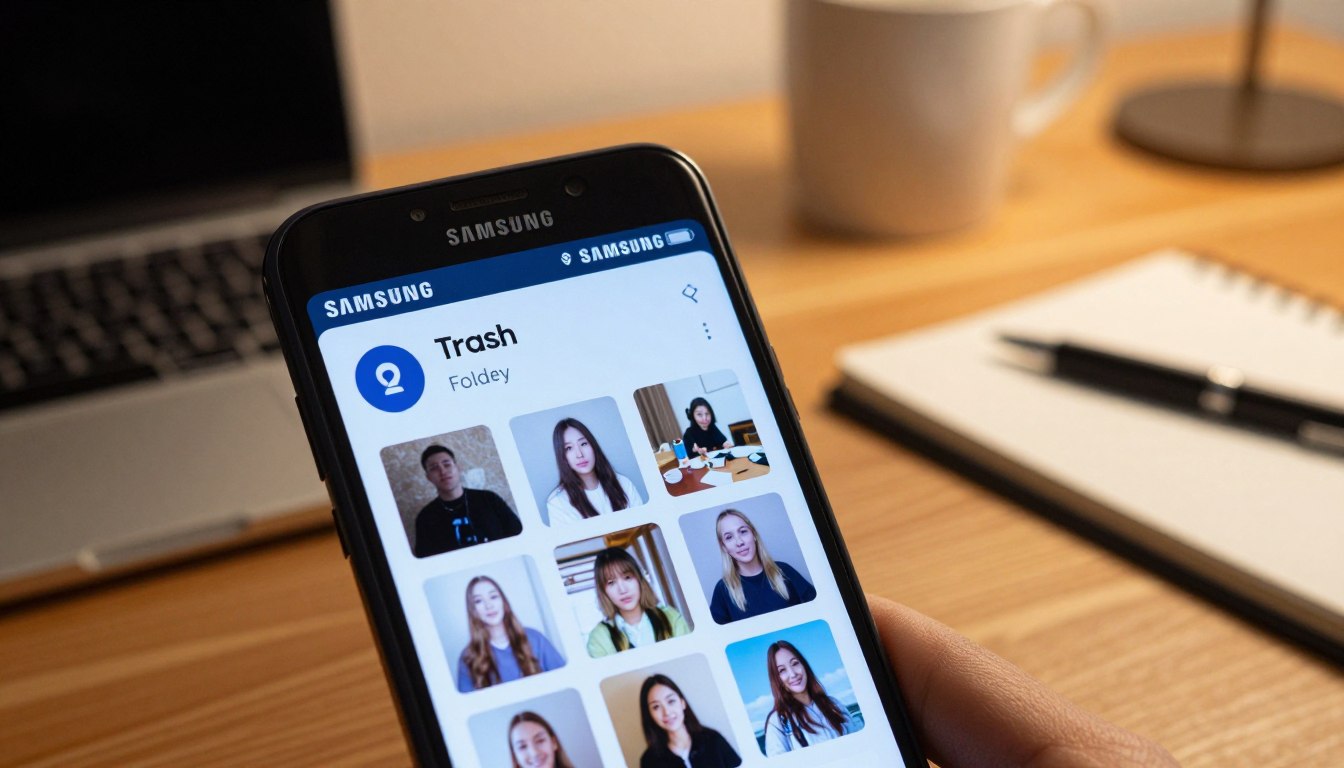
Locating the Recently Deleted Album
To start, open your Samsung Gallery app. Tap the menu icon, which looks like three horizontal lines in the bottom corner. Then, choose “Trash” or “Recycle Bin” to see your recently deleted files.
Restoring Individual and Multiple Images
Inside the folder, you can look through your deleted content. To get back a photo, tap and hold on it to select it. To get back several photos at once, tap more to highlight them, then tap the restore icon to move them back.
Understanding the Thirty-Day Retention Policy
Remember, this feature isn’t a permanent storage solution. Samsung has a strict thirty-day rule for all trash items. After thirty days, the system deletes the files to save space. You must act fast to recover deleted photos before this time runs out.
Utilizing Cloud Backup Services for Recovery
When you can’t get your files back locally, cloud services come to the rescue. They automatically sync your media. This means you can get back deleted pictures even after they’re gone from your device.
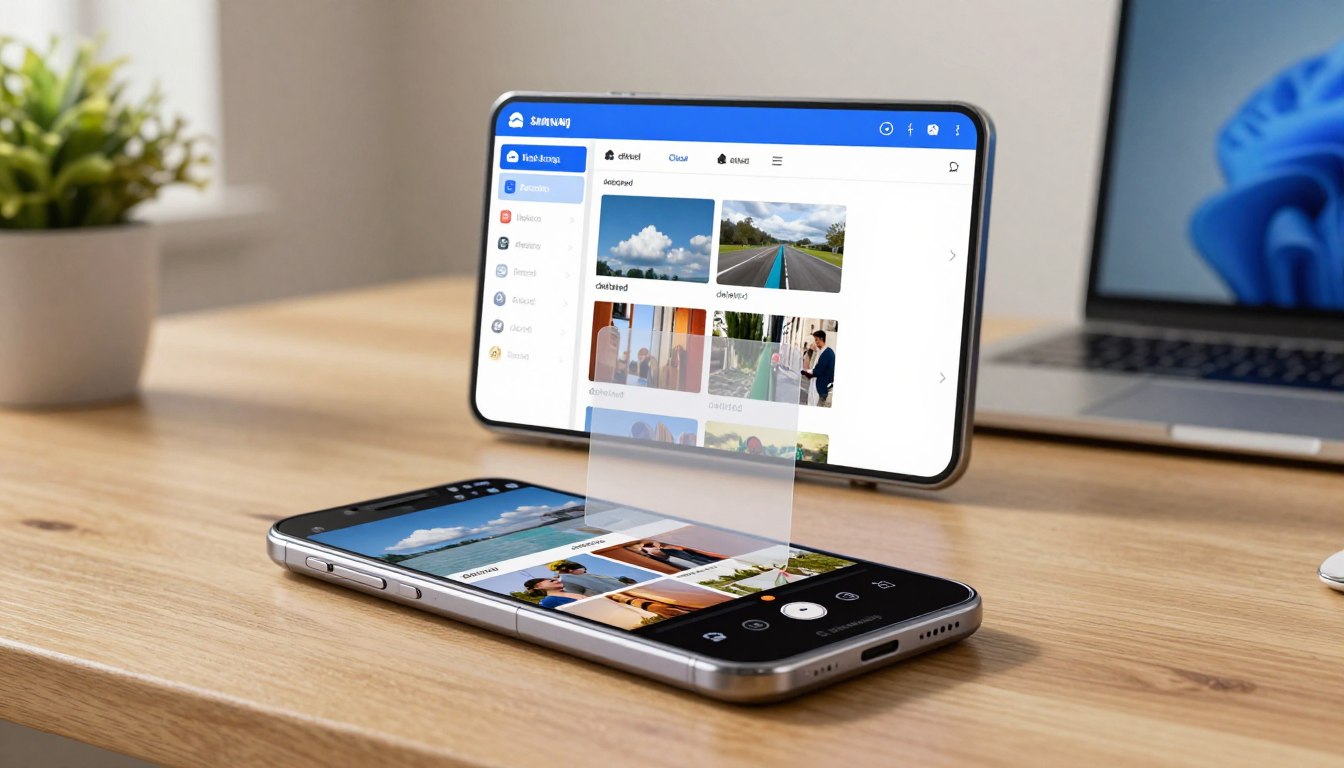
Restoring Images from Google Photos
Google Photos is a go-to for Samsung users. If you have backup and sync on, your pictures are in the cloud. Just open the app and go to the library tab to see your folders.
Also, check the trash bin in Google Photos. Items stay there for sixty days before they’re gone for good. This makes it a good place to find lost images.
Recovering Data via Samsung Cloud or Microsoft OneDrive
Samsung devices often link with Microsoft OneDrive for gallery syncing. If you use this, your deleted files might still be in the OneDrive recycle bin. Check your account settings to see if your photos were uploaded before they got lost.
Some might look for a third-party app to recover photos. But, checking these cloud services first is usually quicker and safer. Make sure you have your login details ready when trying to get your data back.
Keeping sync settings active creates a strong backup for your photos. This way, you can always get back deleted pictures if your phone fails or you accidentally delete them.
How to Recover Deleted Photo on Samsung Galaxy Using Professional Software
When simple methods don’t work, professional software can help. If your photos aren’t in the trash or cloud backups, you might need a deep scan. This requires tools made for complex systems.
Selecting Reliable Photo Recovery Software
Picking the right tool is key to avoid harming your data. Look for photo recovery software with good reviews and a solid reputation. Using an untested photo recovery app can damage your files or pose security threats.
Top-notch software keeps your data safe while searching for lost files. Good data recovery for android tools work well with your phone’s memory. Always get software from official sites to avoid malware.
Connecting Your Samsung Galaxy to a Computer
To start, connect your phone to a computer securely. Use a good USB cable for this. This link lets the software talk directly to your phone’s storage.
You’ll need to turn on USB debugging in your phone’s settings. This lets the software scan your memory fully. Without it, the samsung galaxy photo recovery won’t work right.
Scanning and Previewing Lost Images
With the connection set, the software starts scanning for deleted files. This might take a while, depending on your phone’s size. Keep your device connected the whole time.
Once scanning is done, you’ll see a list of files that can be recovered. Use the preview to check if the files are good before you restore them. This step makes sure you’re getting the right photos, saving time and space.
Preventing Future Data Loss on Your Samsung Device
Keeping your digital memories safe is as crucial as knowing how to get them back. By setting up a good maintenance routine, you can protect your files from accidental loss or system problems. These steps will save you a lot of time and stress later on.
Configuring Automatic Cloud Backups
Protecting your media best is by setting up automatic cloud backups. Cloud services like Google Photos or Microsoft OneDrive work well with Samsung devices. They keep a backup of your photos, making deleted photo recovery easy.
Make sure “Backup & Sync” is turned on in your settings. This keeps your photos updated automatically. You’ll feel secure knowing your files are safe in the cloud.
Implementing Regular Local Backups to PC
Cloud storage is great, but having a local backup on your computer adds extra security. Connect your phone to a computer to transfer your photos. If you run into connection problems, you might need to fix Samsung Android driver issues.
After your device is recognized, move your photos to an external hard drive or folder. This acts as a backup that doesn’t need the internet. Regular transfers keep your device’s storage free and your data safe.
Managing Storage Space to Avoid Corruption
A device with little storage space is more likely to have errors and data corruption. Clear your cache and delete unused files to keep your system running well. This habit stops software problems that can cause data loss.
Check your storage usage in “Device Care” in your settings. If it’s almost full, move old files to an SD card or cloud storage. Keeping your device clean is key to its health and performance.
Troubleshooting Common Recovery Challenges
Recovering lost photos can sometimes be tricky. While many people get their files back, some issues can make it harder. Knowing these problems helps you stay prepared and protect your device.
Dealing with Overwritten Data
After losing photos, the first thing to do is stop using your phone. When you delete a file, the space is ready for new data. Taking new pictures or downloading apps can erase the deleted files forever.
For successful photo recovery, the original data must not be changed. If new data is written over the deleted files, recovery chances decrease. Always keep your device still until the recovery is done.
Addressing Root Access Requirements
Some advanced recovery tools need root access to scan deeply. Rooting gives the software special access to system files. But, it can risk your warranty or trigger security alerts.
Think carefully before using a tool that needs root access. If you’re not tech-savvy, choose a simpler photo retrieval tool. Always back up your data before making any big changes.
When to Consult Professional Data Recovery Services
Software might not solve all problems. If your Samsung device is physically damaged, like a cracked screen, don’t try to recover data. Trying to turn on a broken phone can make things worse.
In such cases, professional data recovery services are your best bet. They use special tools and environments to get data from damaged chips. If your photos are very important, getting help from a pro is the safest choice.
Conclusion
Losing photos on your Samsung Galaxy can be stressful. But now, you have ways to handle it. You can check the trash folder or use cloud services like Google Photos and Microsoft OneDrive to get your photos back. If these don’t work, professional recovery software is still an option.
Having a backup plan is key to avoiding data loss. Make sure to sync your photos regularly to Samsung Cloud or a computer. This way, your photos are safe from accidental deletion or hardware problems.
Speed is crucial when trying to get back lost photos. The sooner you act, the better your chances of recovery. Use these tips to keep your device in order and protect your cherished memories for a long time.