
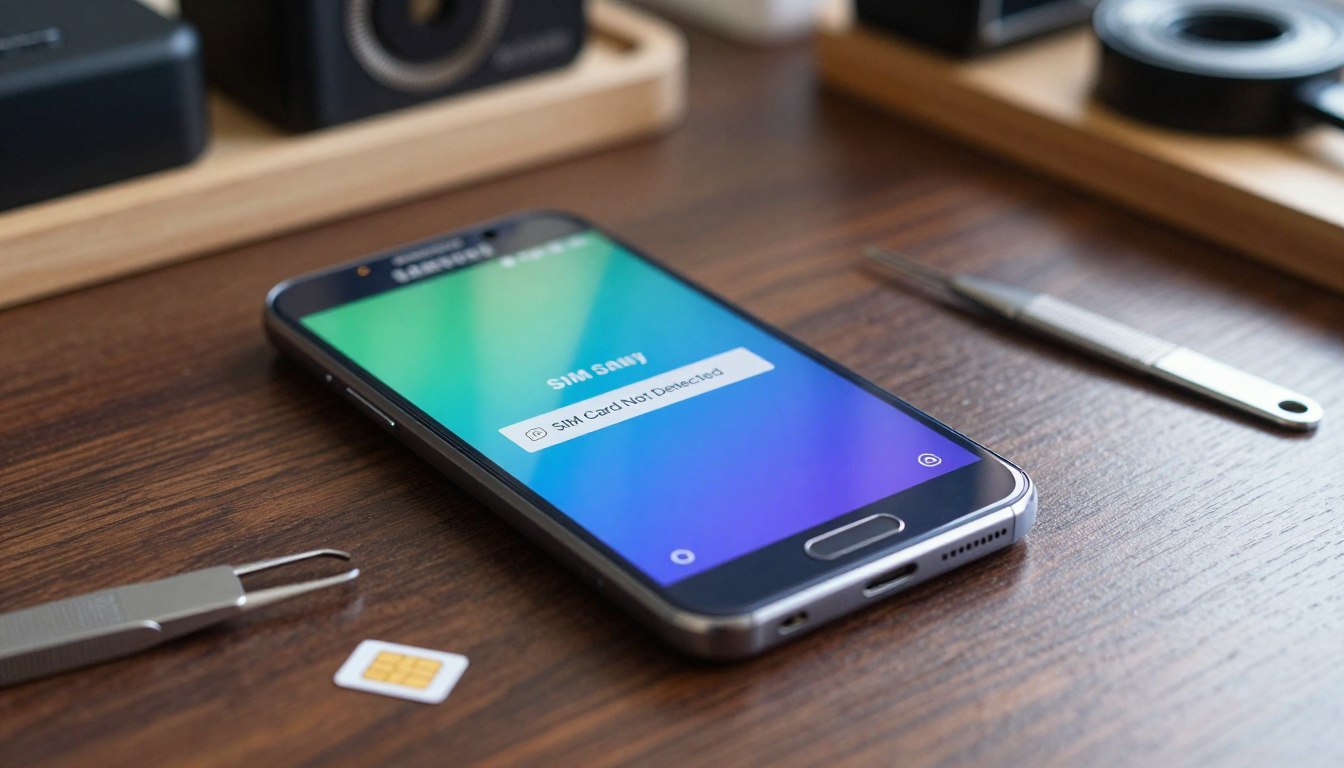
Ever looked at your screen and wondered why it lost all cellular service? A sim card not detected on Galaxy phone error is really stressful when you need to stay connected. Connectivity problems can really mess up your day. But, most issues are simple to fix. You can check if your mobile network settings need tweaking.
This guide will show you how to solve these common problems. By following our tips, you’ll learn to fix sim card not detected on galaxy issues. Getting your phone working again is simpler than you think.
Initial Checks for Galaxy Phone SIM Card Issues
If your device can’t find your SIM card, start with these steps. Before thinking it’s a hardware problem, try these basic fixes. Often, just a few tweaks in your system menus can solve the issue.
Verifying the SIM Card Status in Settings
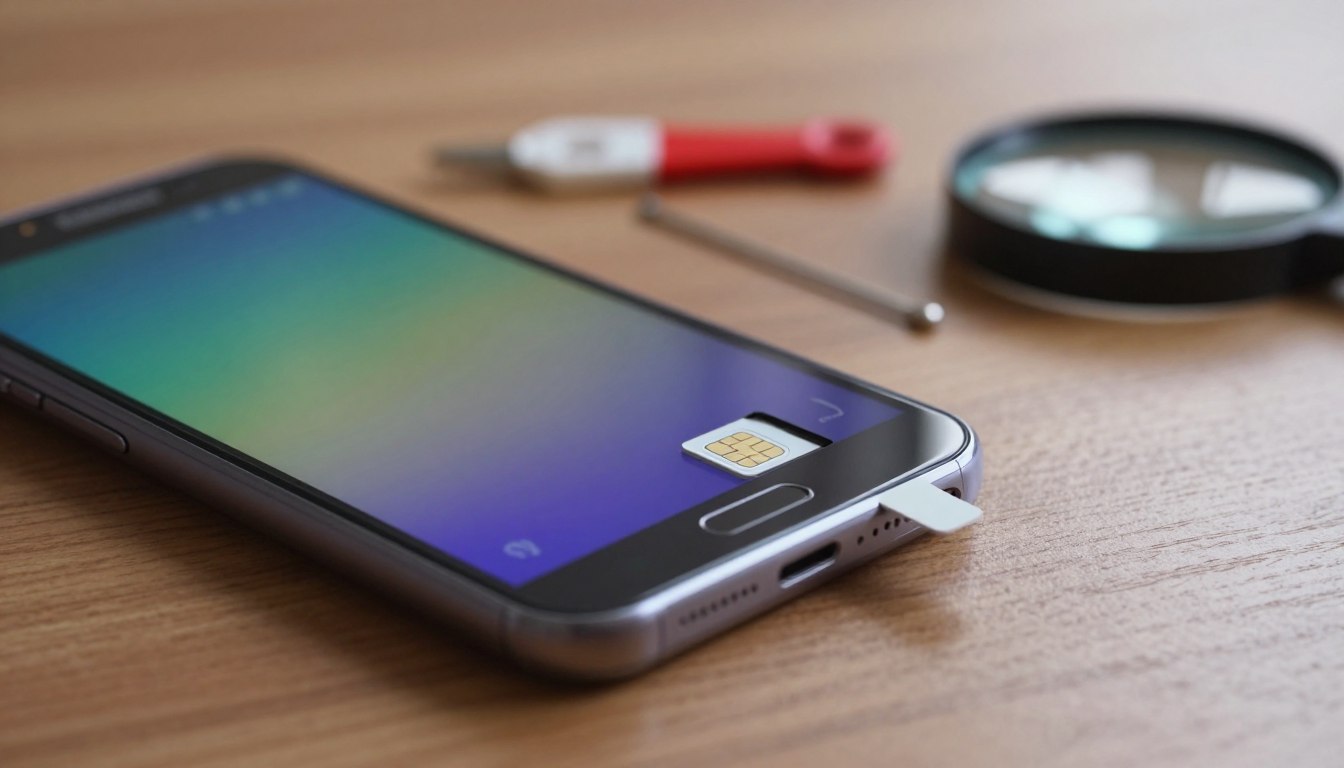
First, see if your phone sees the card in settings. Go to Settings, then Connections, and tap SIM Manager. If the SIM is listed but not active, turn it on.
This check is key for fixing SIM card problems. If the SIM slot looks empty or gray, the card isn’t being read. This means there’s a physical or software issue.
Restarting Your Samsung Galaxy Device
Restarting your phone is a great first step. It clears out background issues that might block your SIM card. This forces your phone to start fresh, including the SIM card reader.
Press the power button and choose Restart. Wait for your phone to reboot. Then, check your signal bars. This simple step often fixes SIM card problems.
Checking for Airplane Mode and Signal Interference
At times, your modem might get stuck. Turning Airplane Mode on and off helps. It makes your phone re-scan for networks and can fix signal issues.
Turn on Airplane Mode from your quick settings, wait ten seconds, then turn it off. Let your phone find your carrier. These steps help you fix simple software problems before looking at more complex fixes.
Physical Inspection and SIM Tray Maintenance
Before you start with software settings, check your SIM card and tray’s physical state. Issues with hardware are a common reason for connection problems. This step is crucial when you’re trying to fix Galaxy SIM card issues.
Removing and Reinserting the SIM Card
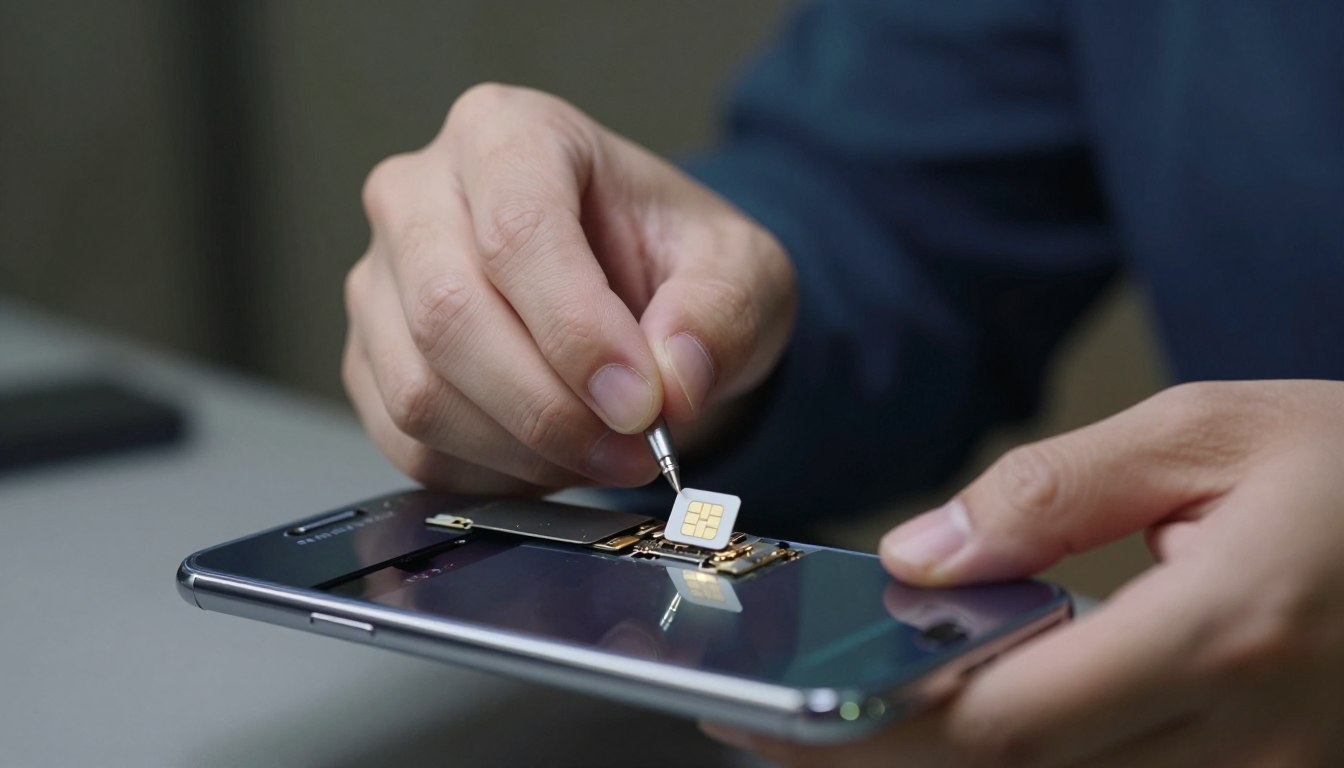
Find the small pinhole on your Samsung Galaxy device’s side. Use the official SIM ejector tool or a paperclip to open the tray.
Press gently but firmly to avoid damaging the pins. When the tray comes out, take out the SIM card and put it back in the slot. Make sure it’s flat.
Cleaning the SIM Card Contacts
The gold contacts on your SIM card can get dusty or oxidized over time. This can block the electrical connection needed for your phone to find the network.
Use a soft, dry, lint-free cloth to clean the gold contacts. This simple step can help fix your galaxy sim card problem without needing a pro.
Inspecting the SIM Tray for Physical Damage
Look at the SIM tray’s plastic or metal frame for any damage. Even a small bend or crack can stop the card from connecting properly.
If the tray is damaged, it might not hold the card right. Replacing a damaged tray is often the last step to fix galaxy sim card problems caused by wear and tear.
Software Troubleshooting to Fix SIM Card Not Detected on Galaxy Phone
If your hardware looks good, software problems might be the issue. These problems can stop your phone from seeing the SIM card. By fixing these software issues, you can often solve the problem without needing a professional.
Updating Your Galaxy Phone Software
Manufacturers often release updates to fix modem and network issues. Keeping your device updated ensures it works well with your carrier’s network. Check your settings for any updates to fix bugs.
Clearing the System Cache Partition
Your device collects temporary files over time. These files can mess with your phone’s background processes. Clearing the system cache removes these files without losing your personal data.
Booting into Safe Mode to Identify Third-Party Conflicts
Some apps might clash with your network services. To find out if an app is causing trouble, try booting into Safe Mode. This mode turns off all non-essential apps, helping you see if the problem still exists.
If your phone finds the SIM card in Safe Mode, a new app is likely the problem. You can then remove apps one by one to find the issue. This method is very effective in fixing software-related SIM card issues.
Network Settings and Connectivity Adjustments
Acting up devices often have misconfigured network settings. These settings control how your phone talks to carrier towers. When they get messed up, you might need to fix sim card not recognized on galaxy problems.
Resetting Network Settings on Your Galaxy Device
Resetting network settings can fix many issues. It clears out wrong APN profiles and roaming data. Go to your phone’s Settings, then General Management, and choose Reset.
When you pick “Reset network settings,” confirm it to start. This will erase Wi-Fi passwords and Bluetooth devices. After restarting, your phone will try to connect to your carrier again.
Manually Selecting Your Mobile Network Operator
Automatic network selection might not work for your SIM card. You can choose your provider manually. Go to Settings, tap Connections, and pick Mobile Networks to find Network Operators.
Turn off “Select automatically” to see a list of carriers. Pick your provider to force your device to connect. This is a good fix for roaming or tower handoff errors.
Switching Between Network Modes
Your phone switches between 5G, LTE, and 3G automatically. But, if a band is unstable, it can drop your connection. Try changing the Network Mode in Mobile Networks.
Switch to “LTE/3G (auto connect)” instead of 5G. This might improve your signal. If it does, keep this setting until your carrier fixes local tower issues.
Advanced System Recovery Methods
When simple fixes don’t work, it’s time for more advanced steps. These methods tackle deep software problems that might block your phone from reading the SIM card. These galaxy sim card error solutions need patience and careful planning.
Performing a Factory Data Reset
A factory reset is a strong tool that brings your device back to its original state. It’s a last resort because it deletes all personal data. Always save your important files online or on a computer before doing this.
To start the reset, go to your phone’s settings and choose general management. Then, pick the reset option and follow the instructions to clear your device. This often fixes deep software bugs that simple fixes can’t.
Checking for IMEI Status and Blacklisting
If your phone still can’t find a signal, check your device’s IMEI number status. A blacklisted IMEI means your device is reported lost or stolen, blocking network access. You can check this status on carrier databases or third-party sites.
If your device is blacklisted, contact your service provider. They can tell you why it’s flagged and how to clear it. Without a clean IMEI, no software fix will work.
Verifying Software Compatibility with Your Carrier
At times, the problem is a mismatch between your device’s software and your network provider. This can happen if your phone was locked to another carrier. Even if it seems unlocked, the software might not work with your new network.
Make sure your device’s model number matches your carrier’s supported bands. If the software is outdated or for another region, you might need to update it or get an unlock code. Matching your software with your provider is key to fixing galaxy sim card errors.
When to Contact Your Carrier or Samsung Support
When you’ve tried everything and still have a problem, it’s time to get help from experts. If changing software and settings doesn’t work, the issue might be too complex for you. Getting help from your carrier or Samsung is often the best next step.
Determining if the SIM Card is Faulty
Over time, SIM cards can wear out or have internal problems. Look for scratches, oxidation, or warping on the card. Also, older SIM cards might not work well with newer phones.
Requesting a Replacement SIM Card from Your Provider
If you think the SIM card is the problem, contact your carrier right away. Most carriers will give you a new SIM card for free or a small fee. Just visit a store or call customer support to get a new one. Once you have it, activating it usually fixes your service quickly.
Scheduling a Repair at a Samsung Authorized Service Center
If a new SIM card doesn’t fix it, the SIM reader in your phone might be broken. Contact Samsung support to find a certified tech. Like fixing a camera failed issue on Samsung, fixing hardware needs a pro. An authorized service center will use genuine parts and fix your phone right.
Conclusion
Your Samsung Galaxy device is a key part of your digital life. If you face a constant error, fixing the sim card issue is crucial. It keeps you connected every day.
This guide showed you how to find and fix common problems. Now, you can tackle issues with confidence. Often, you can avoid a visit to the repair shop by taking these steps.
But, some issues need help from Samsung or your carrier. If your phone still doesn’t see the card, contact their support. They can check if your device needs a new part or if your account needs a network update.
We hope you now know how to fix sim card issues on your Galaxy phone. Keep your software up to date and take care of your hardware. This way, your mobile experience will stay smooth and reliable, even when you’re busy.