
Have you ever asked yourself, “Why does my Samsung tablet won’t switch on when I need it most?” This frustrating problem can feel urgent, but staying calm helps you act smart and fast.
Many devices fail to power up because the battery is drained, a minor software glitch, or a hardware fault. If your Galaxy Tab shows a black screen, simple steps often restore the home view without risking your data.
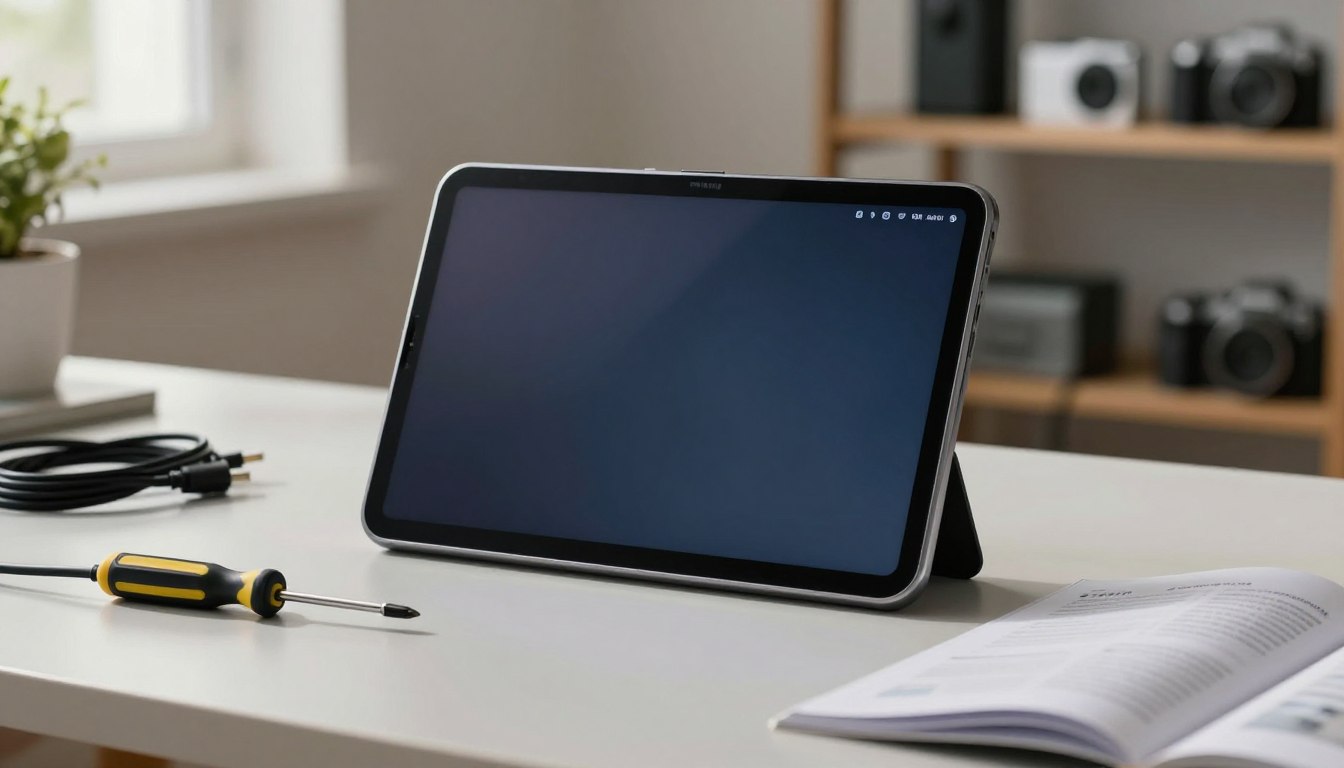
Start with basic power cycles and charging checks before moving into recovery mode or factory resets. These quick checks save time and often fix the issue without professional help.
In the next parts, you will get clear, step-by-step solutions that cover battery, screen, software, and hardware checks so you can bring your device back to life safely.
Key Takeaways
- Remain calm and follow step-by-step troubleshooting.
- Check charging and power first; many problems are simple.
- Try soft resets before attempting recovery or factory reset.
- Protect your data by avoiding harsh procedures early.
- Hardware faults may need professional repair if basic steps fail.
Initial Assessment When Your Samsung Tablet Won’t Switch On
Start by looking for liquid exposure and hardware problems before attempting advanced fixes.
Remove the SIM tray and check the LDI (Liquid Damage Indicator). If the dot is solid pink, purple, or red, the device has likely seen moisture and may need professional repair or service.
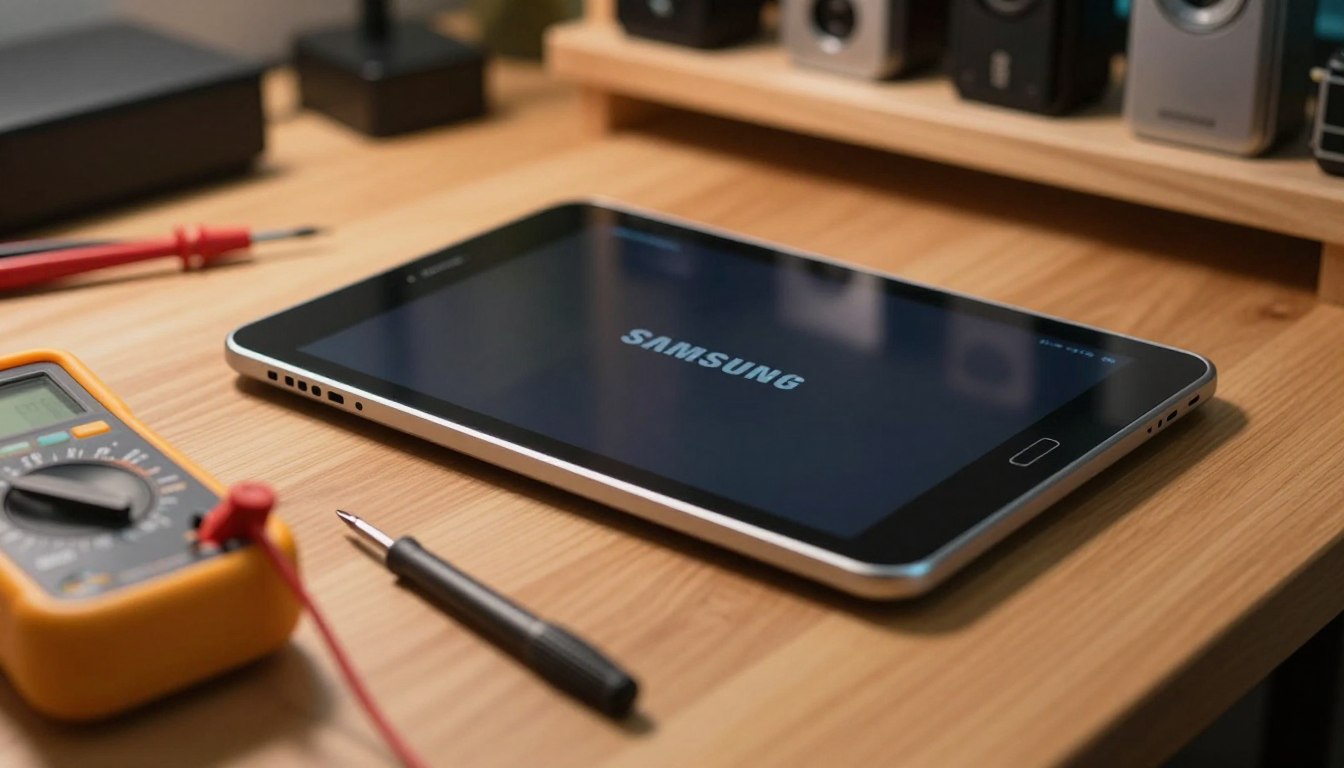
Inspect the physical power button to see if it is stuck or broken. A jammed button can stop the tablet from responding even if the battery and software are fine.
If the screen stays dark, try calling the device from a phone to see if it rings. Hearing a call means the hardware and network may still work, narrowing the issue to the display or software.
Always back up important data when possible. Some troubleshooting steps can require a factory reset that erases files. If basic checks fail, contact Samsung support or seek authorized service for safe diagnosis.
For guided reset steps, consult this reset guide to prepare before deeper recovery actions.
Basic Power and Charging Troubleshooting
Start by confirming the charger, cable, and wall outlet are delivering steady power. Most power issues come from a bad connection or a drained battery rather than deep software or hardware faults.
Checking Your Charger and Cable
Make sure you use the original charging cable and a certified wall adapter. Uncertified chargers and counterfeit chargers can slow charging, cause long-term battery damage, or create inconsistent power flow.
If the battery is fully drained, allow the device to charge for at least 10 minutes before expecting a charging indicator on the screen. Avoid extension cords or power strips; plug the charger directly into a wall outlet for reliable current.
Cleaning the Charging Port
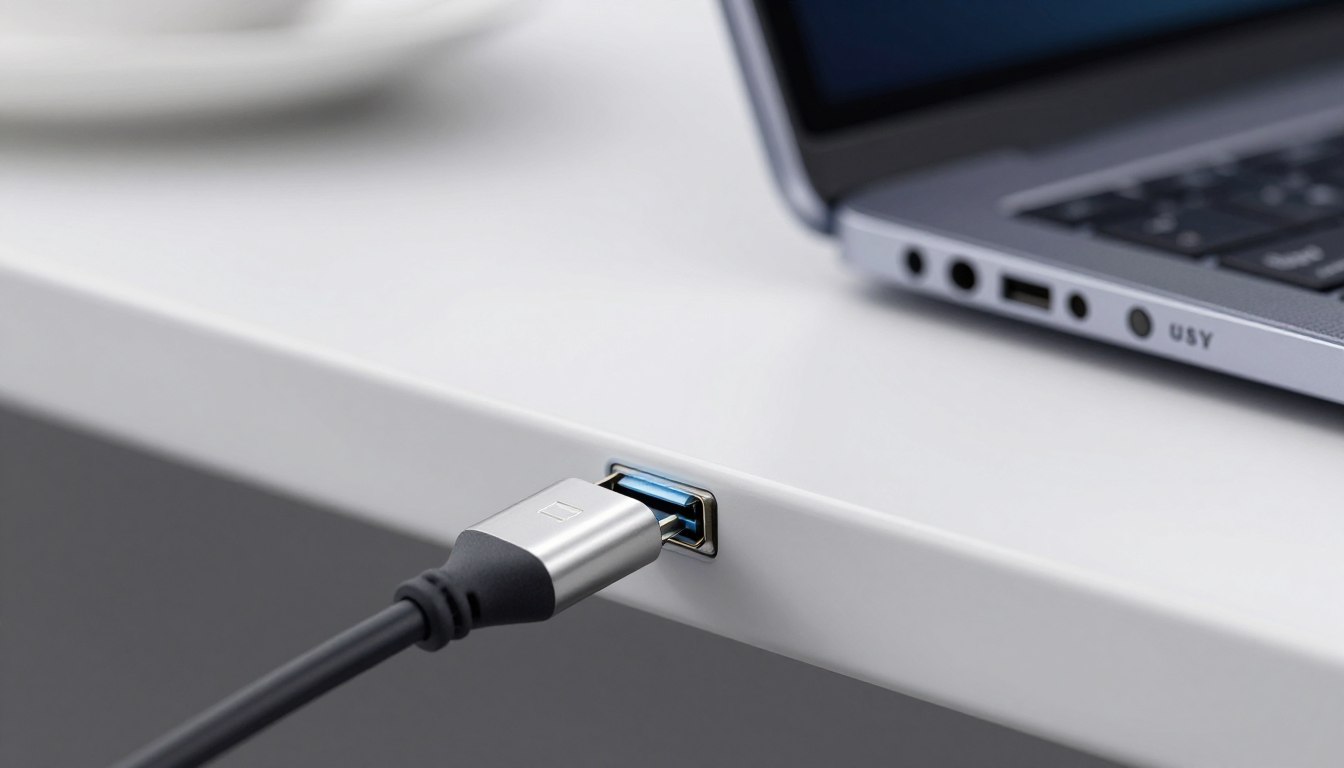
- Inspect the charging port for bent pins or debris. Visible lint or dust can stop a secure connection between the charging cable and the port, so clean gently with a soft brush or compressed air.
- If pins look damaged or the tablet still will not turn after a proper charge, consider professional repair or service. Regular cleaning keeps the port healthy and helps you avoid future charging issues or data-loss risks.
Performing a Force Restart on Your Device
When the screen stays black but the device still seems live, a force restart is a fast and safe first step. This method mimics removing the battery and clears temporary freezes without erasing your data.
Using Button Combinations
- To perform a force restart, press hold the power button and the volume down button simultaneously for approximately 60 seconds until the device restarts. Keep both buttons pressed firmly; a light touch may not register the command on some models.
- If the device enters Maintenance Boot Mode, use the volume buttons to highlight Normal Boot and select it with the power button. This lets you return to regular operation without wiping settings.
- If the tablet still does not respond after 60 seconds, the issue may be internal and require professional service. For guidance on other power options, see this turn off guide.
Advanced Software Solutions and Recovery Mode
When basic steps fail to bring your device back, advanced software options can help. These methods let you test whether apps or system files block startup before pursuing hardware service.
Booting into Safe Mode
- If the tablet partially turns on, boot into Safe Mode to isolate third-party app conflicts. Press the power button, then press hold the power off icon until Safe Mode appears, and confirm.
- In Safe Mode, only built-in apps run. If the home view loads normally, an app you installed likely caused the issue.
Clearing App Conflicts
- Uninstall recent apps that might have caused crashes. Clear app caches and restart the device after each change to check results.
- If issues persist, try booting with minimal apps for a few minutes to confirm stability before moving to recovery.
Factory Reset Procedures
- Factory reset is a last-resort recovery option. To enter recovery mode, power the device off, then use the specific volume buttons and hold power while starting until recovery appears.
- Factory reset will erase data, so make sure you have a backup first. If software recovery fails, seek professional repair or authorized service for deeper recovery.
- For guided recovery steps and related fixes, see the recovery guide.
Inspecting Hardware for Physical Damage
- A physical inspection can reveal simple damage that stops your device from powering up.
- Carefully check the exterior for cracks, dents, or a bent charging port. Make sure the charging port is free of lint or corrosion. Use a soft brush or compressed air to clean it gently.
- Examine the charging cable and charger for frayed wires or exposed conductors. A damaged cable often prevents proper charging and can mimic a dead battery.
- If your model has a removable battery, remove it for about 30 seconds to reset internal contacts. Reinstall the battery, connect the charger, and try to power up while you hold the power button.
- If buttons feel stuck or volume buttons are unresponsive, internal hardware damage may be the cause. Minor drops can create hidden faults that show up over time.
- If you cannot find the issue, consider professional repair. Authorized shops and local services can diagnose faults quickly. For related connector troubleshooting, see this USB-C to HDMI fixes.
Conclusion
Final steps should help you decide between a quick repair at home or professional service. Check the charger and battery first, try a force restart, and watch for any signs during a tablet turn. These simple checks solve many common power problems and offer safe solutions.
If software issues persist, booting into recovery or safe mode gives clear options. Test with a phone or another charger where possible. If your Samsung tablet or Galaxy tab still fails, professional diagnostics may find hidden faults.
Back up your data before any factory reset. Contact Samsung support or local service when repairs go beyond home fixes. That approach keeps your information safe and gets you back to the home view faster.