
When you update your phone, you expect it to work better. It’s really frustrating when it starts draining battery fast. This problem often comes from hidden processes that start when you update. Knowing how to fix Galaxy S24 battery drain after update is key to keeping your phone running well.
Even though updates aim to make your phone more stable, they can sometimes use more power. You should be able to use your phone all day without needing to charge it.
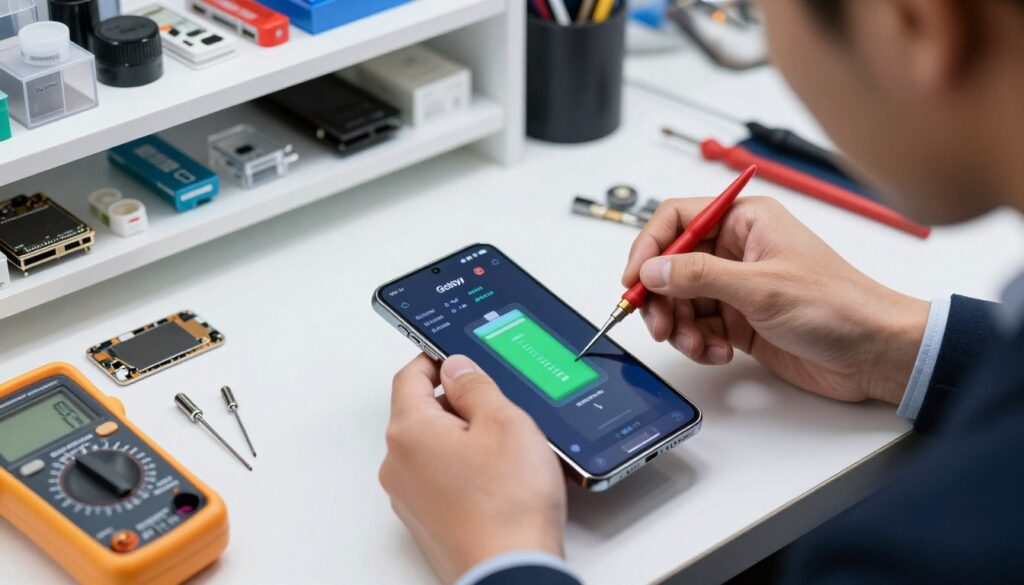
This guide will help you find and fix the problems that cause battery drain. By using these steps, you can make your phone work better again. Let’s go through the changes you need to make to get your phone back to its best.
Understanding Why Updates Cause Battery Drain
Your phone works harder after a big software update. It’s frustrating to see your battery go down, but these tasks are needed for your phone’s health. To fix galaxy s24 battery drain, first understand these tasks.
The Role of System Re-indexing
After a new Android version, your phone re-organizes your files and databases. This makes your data easier to find later. But, it means your phone’s processor is busy, which can make your battery drain faster.
Background Optimization Processes
Your phone also runs many background tasks to match the new software. These tasks make your phone warm up as it adjusts settings. This is normal as your phone gets used to its new software.
These tasks usually end in a few days. After that, your phone should use power like it did before. Being patient during this time is key.
Compatibility Issues with Third-Party Apps
Old apps might not work well with the new system. If an app isn’t updated, it can keep your phone awake. This hurts your battery life.
Updating your apps can fix these problems. Developers often release updates to work with the latest system. Keeping your apps current helps your phone use less power.
Immediate Steps to Fix Galaxy S24 Battery Drain After Update
When your battery life drops after an update, you need to act fast. Learning how to fix Galaxy S24 battery drain after update can prevent frustration. These steps help clear software issues that pop up during updates.
Restarting Your Device to Clear Temporary Glitches
Restarting your phone is often the best first step. It clears out temporary bugs. This action can fix many issues, similar to fixing Galaxy S24 Ultra S Pen problems.

Checking for Secondary Software Patches
Updates sometimes have small bugs that get fixed quickly. Check your settings for any new patches or updates. These can help fix your battery drain issues.
Verifying Battery Usage Statistics
To find out why your battery is draining, check the battery usage menu. It shows which apps and services use the most power. This helps you find the problem.
Identifying Power-Hungry Applications
Look for apps that use a lot of power but don’t get used much. If an app is using too much power, update it or clear its cache. This is key to fixing battery issues.
Analyzing System Service Consumption
System services can also use a lot of power after an update. If “Android System” or “Google Play Services” are using a lot of power, it might be indexing data. Watch these services for a few hours to see if they go back to normal.
Optimizing System Settings for Better Power Efficiency
Managing your device settings is key to fixing battery drain on your Galaxy S24. By tweaking how your phone uses power, you can use it longer without losing performance. These tweaks help keep your phone’s battery life long while still using its top features.
Adjusting Display Refresh Rate and Resolution
Your screen eats up a lot of power. High refresh rates and top resolution settings use a lot of energy. You can find ways to save battery by going to your display settings.
Try changing your refresh rate to standard if you don’t need super-smooth scrolling. Lowering your screen resolution to FHD+ instead of QHD+ can also save power. These small tweaks can make your phone cooler during heavy use.
Configuring Adaptive Battery Settings
Samsung has smart tools to help manage power use. The Adaptive Battery feature learns your habits and limits power to apps you don’t use often. Turning this on stops background apps from wasting energy.
Make sure this feature is on in your battery menu. It quietly helps your device last longer. By focusing on apps you use, your phone uses resources better all day.
Managing Connectivity Features Like 5G and Bluetooth
Connectivity features can cause power loss. If your 5G signal is weak, your phone keeps searching for a better one. This constant search can drain your battery fast.
Using LTE instead of 5G in weak areas is a good idea to save battery. Also, turn off Bluetooth and Wi-Fi when not in use. These simple steps help your device stay charged for when you really need it.
Managing Background Apps and Services
Controlling your background apps is key to longer battery life. Apps running in the background use power, even when your phone is idle. This is why your galaxy s24 battery might drain fast after updates.
Restricting Background Activity for Unused Apps
You can cut down on power use by limiting app background activity. Go to your device settings and find the battery usage menu. There, you can see which apps use the most energy. By setting these apps to “Restricted,” you stop them from waking up your processor too often.
Disabling Unnecessary Sync Services
Many apps sync data with the cloud, making your device wake up a lot. To stop galaxy s24 battery drain, turn off auto-sync for unused accounts. This cuts down on background tasks that use up your system resources.
Clearing App Cache for Problematic Software
A bad cache file can stop an app from using less power. If an app keeps causing problems, try clearing its cache. This helps your software run smoothly without constant background activity.
Advanced Diagnostic and Recovery Methods
If simple fixes don’t work, it’s time for more advanced steps. These methods tackle deep software problems that can happen after big updates. They help find and fix the main reasons for your device’s slowdown.
Wiping the Cache Partition via Recovery Mode
Clearing the cache partition is a great way to fix battery issues. It removes temporary files that might be causing problems. This method keeps your personal data safe, like photos and messages.
To start, turn off your phone and connect it to a computer with a USB cable. Press the Volume Up and Power buttons together until the logo shows. Then, use the volume keys to choose “Wipe cache partition” and confirm with the power button.
Resetting All Settings to Default
System settings can sometimes clash with new updates, using too much power. Resetting all settings brings them back to their original state. This doesn’t delete your files or apps.
Go to your device’s settings and find the “Reset” menu. Pick “Reset all settings” to fix any battery-draining issues. After it’s done, your phone will restart, and you can set your preferences again.
Performing a Factory Data Reset as a Last Resort
If nothing else works, a full factory reset is your last option. It completely erases your device, taking it back to its new state. Make sure you have a backup of your files before doing this.
For help with this step, check out this guide on how to reset your device. A fresh install of the operating system can fix bugs that updates can’t. Use this method only if you’re ready to restore your data from a backup.
Conclusion
Managing your smartphone’s power is all about patience and proactive steps. You now have the tools to tackle common power issues on your Samsung device.
Using these Galaxy S24 battery drain solutions can make your system more stable after big software updates. Let your phone finish any background tasks before it’s at its best.
Learning how to stop Galaxy S24 battery drain means keeping an eye on your usage stats. Regular checks help spot apps that use power when you’re not using them.
Fixing Galaxy S24 battery drain issues keeps your phone working well all day. Sticking to these habits makes your mobile experience better and more reliable.
Sharing your success with other Samsung users can help them keep their devices running longer. Your tips can make a big difference for the community.