
Ever grabbed your phone and felt it was too hot to hold? It’s a common problem many face. A little warmth is okay when charging, but too much is a warning sign.
Ignoring these signs can harm your phone’s hardware or shorten its battery life. It’s crucial to act fast to keep your device in top shape. By doing so, you ensure it stays safe and works well for a long time.
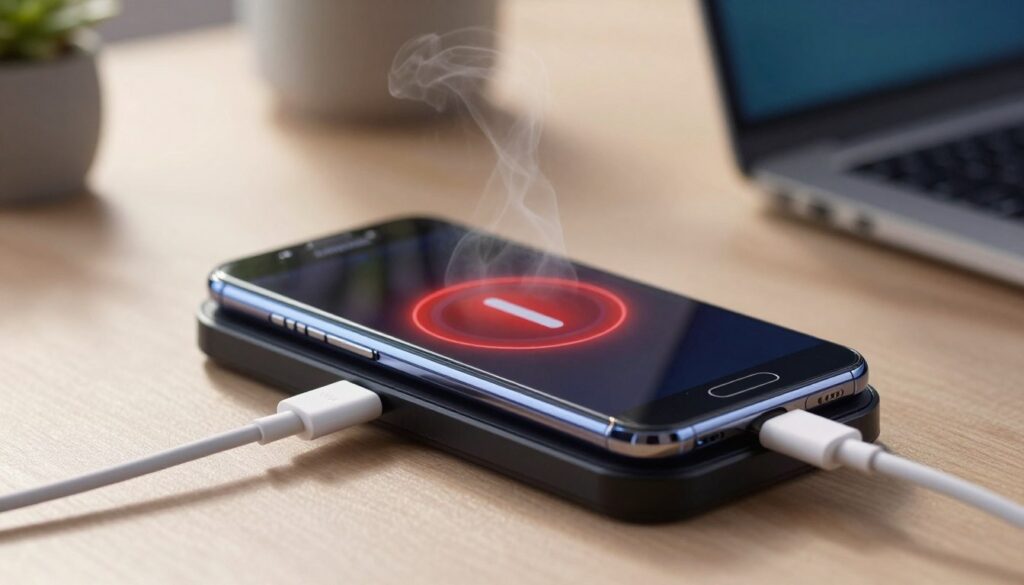
Most overheating issues can be fixed with basic software tweaks or hardware checks. You don’t need to be tech-savvy to fix this problem. This guide will walk you through the steps to get your phone running smoothly again.
Why Your Samsung Device Generates Heat While Charging
It’s normal for your device to get warm when charging. But, knowing why it happens is key to keeping your battery healthy. Understanding the difference between normal heat and a real problem can ease your mind.
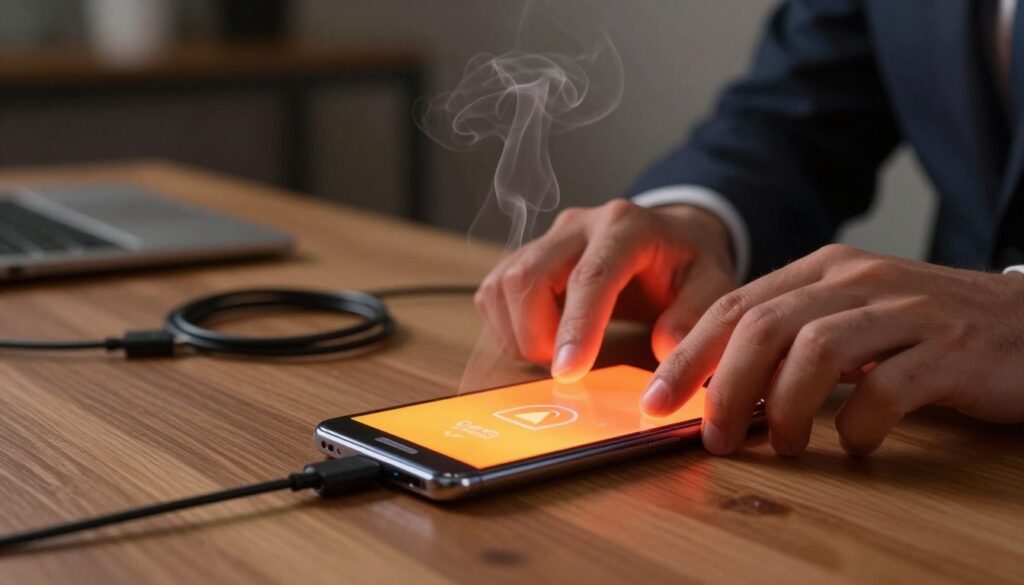
The Science of Lithium-Ion Battery Charging
Your Samsung device has a lithium-ion battery that uses chemical reactions to store energy. When it charges, lithium ions move from one part to another. This movement creates heat as a side effect.
This heat is a natural part of charging. It happens in all modern phones. If the temperature stays okay, your battery is working right.
Common Environmental Factors Affecting Temperature
Internal chemistry isn’t the only thing that affects your phone’s temperature. External factors like sunlight or hot rooms can make it hotter. These factors stop your phone from cooling down properly.
When your phone is already trying to handle the heat from charging, these factors can make it too hot. Keep your phone cool and in a well-ventilated area while it charges. This helps it stay at the right temperature all day.
Immediate Safety Protocols for Overheating Devices
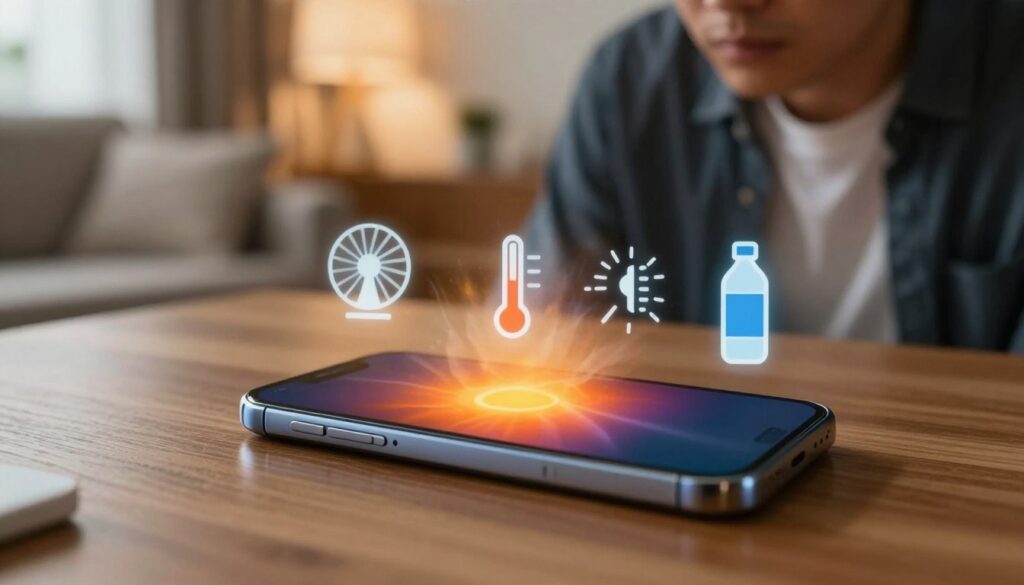
If your phone gets too hot while charging, follow these important tips. Quick action keeps your battery safe and prevents damage. If your phone feels hotter than usual, act fast.
Disconnecting from Power Sources
First, pull the charging cable out of the wall and your phone. This stops electricity flow, which causes heat. By doing this, you let your phone’s parts stop making more heat.
Removing Protective Cases and External Obstructions
Many phone cases trap heat. Take off thick covers to let your phone breathe. This helps it cool down faster and safely.
Allowing the Device to Cool Naturally
After removing the cable and case, put your phone on a hard, flat surface. Make sure it’s in a place with good air flow. Don’t try to cool it down too fast by putting it in the fridge. This can cause damage.
Troubleshooting Samsung Phone Overheating During Charging
If your Samsung phone overheats while charging, it’s often because of something you’re holding. The most common cause is physical parts that don’t work right. By checking these parts, you can often fix the problem yourself.
Checking for Faulty Charging Cables
Your charging cable connects your phone to power. If it’s damaged, it can cause heat. Look for any signs of damage on your cord.
If you see damage, get a new cable right away. A bad wire is not just inefficient; it’s also dangerous. Learn more about Samsung Phone charging issues in our detailed guide.
Inspecting the USB-C Charging Port for Debris
Over time, dust and other debris can block your USB-C port. This makes charging harder and can cause overheating. Use a wooden toothpick to clean the port carefully.
Be very careful not to hurt the tiny pins inside. A clean port helps power flow smoothly. This simple step can help keep your phone cool while charging.
Verifying the Authenticity of Your Power Adapter
The power adapter controls the voltage to your phone. Cheap or fake adapters can cause too much heat. Always use a charger that’s made for your phone.
Identifying Genuine Samsung Chargers vs Third-Party Alternatives
Real Samsung chargers have safety features to prevent overheating. Many cheap chargers don’t have these. Look for official Samsung logos and safety certifications.
Using high-quality chargers keeps your battery safe. If your charger is too hot, stop using it. Switch to a verified charger to keep your phone cool.
Optimizing Charging Settings to Reduce Thermal Load
You can lower your phone’s temperature by changing its charging settings. Modern phones handle high power well, but it still gets hot. It’s key to find a balance between using your phone and keeping it cool.
Learn how to fix overheating issues on Samsung Galaxy devices to keep them safe.
Disabling Fast Charging Features
Fast charging is handy, but it can make your phone hot. Go to your battery settings and turn off “Fast Charging” or “Super Fast Charging.” This slows down the charging speed, making less heat.
Managing Battery Protection Settings
Samsung has tools to stop your phone from overheating. You can set “Battery Protection” to stop charging at 80% or 85%. This way, your battery doesn’t get too hot during charging.
Avoiding Simultaneous High-Intensity Tasks
It’s easy to use your phone while it’s charging, but it’s not good. Doing things like gaming or video editing while charging makes it even hotter. Try to let your phone charge without using it too much.
Managing Software and Background Processes
When your phone overheats, managing its software is crucial. Apps running in the background use a lot of CPU and RAM. This makes your processor work harder, which increases heat while charging.
Closing Resource-Heavy Applications
Check which apps use the most power. Go to your device settings and find the battery usage menu. Look for apps you’re not using and close them to lower heat.
Updating System Software and Firmware
Samsung often updates firmware to improve heat and battery management. Keeping your OS up to date ensures your device runs smoothly. Look for updates in your settings to avoid heat buildup.
Clearing the System Cache Partition
Old update files can cause overheating. Clearing the cache partition removes these files without losing your data. It’s a good fix when other methods don’t work.
Step-by-Step Guide to Entering Recovery Mode
To clear the cache, turn off your phone and connect it to a computer. Press Volume Up and Power together until you see the Samsung logo. In the recovery menu, use volume keys to choose “Wipe cache partition” and press Power to select.
Confirm by choosing “Yes” and then “Reboot system now” to restart. This simple step can fix thermal issues and help with overheating.
Hardware and Accessory Checks
When your phone gets too hot, it’s often because of a hardware problem, not a software issue. By checking each part of your charging setup, you can find the problem fast.
Evaluating Battery Health via Samsung Members App
Your phone has a built-in tool to check its parts. Open the Samsung Members app and go to the “Support” tab. Then, find “Phone diagnostics” and choose battery status to see if your battery is okay.
If the app says your battery is weak or needs service, it might be the heat cause. A bad battery can’t handle power well, causing heat when charging.
Identifying Damaged or Frayed Charging Cables
Worn-out charging cables can make your phone work harder to charge. Look for fraying, exposed wires, or bent connectors. Even small damage can affect your phone’s power handling.
If you see any damage, get a new, quality cable right away. Using a bad cord can cause your phone to overheat.
Testing with Alternative Power Outlets
The problem might not be with your phone or cable, but the power source. Try charging in a different room with a different outlet. Also, test a different wall adapter to check if your current one is okay.
Advanced Diagnostic Steps for Persistent Issues
If your device keeps heating up, it’s time for more advanced steps. These actions tackle deep software problems or hardware issues that simple fixes can’t solve. By carefully finding the cause, you can decide if your phone needs a pro fix or just a system update.
Performing a Factory Data Reset
A factory reset brings your device back to its original state. It removes any bad system files or processes that might be causing the heat. Make sure to back up your data first, as this will erase everything on your phone.
To start, go to your settings and choose the reset option. After it’s done, set up your phone as new. If it stays cool, a software bug was probably the problem.
Recognizing Signs of Permanent Battery Degradation
At times, the problem is a failing battery. Look for signs like a lifted screen or a swollen back panel. These show the battery needs fixing right away.
Other signs include fast battery drain or sudden shutdowns. If you see these, stop charging your phone to avoid more damage. These are clear warnings that you need expert help to stay safe.
Contacting Samsung Authorized Service Centers
If you can’t fix it yourself, it’s best to get help from an expert. Samsung’s authorized service centers have the right tools and parts to find and fix internal problems. They can also test your battery’s health in detail.
Find a local service center on the Samsung support website or through the Samsung Members app. Booking an appointment means a certified tech will check your device and fix it right. This keeps your warranty safe and ensures your phone gets top-notch care.
Conclusion
Managing your Samsung smartphone’s temperature is key. It’s all about your daily charging habits. By choosing the right, certified accessories, you can make your battery last longer.
Keeping your system software up to date is crucial. These updates often include features that help control heat. This way, you protect your phone from overheating during heavy use.
Being proactive is the best way to keep your device healthy. Watch out for your charging environment and avoid hot spots. Making a few simple changes can keep your Samsung phone running well for years.
Start taking care of your mobile experience today. Follow these simple steps to keep your tech running smoothly and safely. If you face ongoing issues, don’t hesitate to reach out to official support.