
Do you find yourself constantly reaching for a charger before the day is even halfway over? It’s really frustrating when your new smartphone loses power unexpectedly. This leaves you disconnected when you need your device the most. Many users face the problem of a Galaxy S26 battery draining fast soon after upgrading. Finding the root cause is the first step to fix your device’s performance.
It could be a rogue app or a system setting causing the issue. Identifying the problem saves you time and stress. You should also learn how to turn off your device to stop background processes from using energy. By following these steps, you can control your mobile experience and use it longer each day.
Identifying the Root Causes of Galaxy S26 Battery Draining Fast
Figuring out why your phone’s battery drains quickly is key to better mobile use. It’s important to check both hardware and software. Knowing these areas helps you extend battery life on Samsung Galaxy devices.
Common Culprits Behind Rapid Power Loss
Many things can make your Galaxy S26 battery drain fast. High screen brightness, always being connected to 5G, and apps running in the background are common culprits. These use a lot of power, draining your battery quickly.
Software bugs or apps that use too much power can also cause issues. If you’ve installed a new app or update, it might be the problem. Watching for these can help you adjust your settings.
Distinguishing Between Normal Usage and Battery Drain Issues
It’s important to know the difference between heavy use and a real battery problem. If you watch lots of HD video or play games, your phone will use more power. This is normal.
But if your phone loses a lot of power when it’s just sitting there, you have a real problem. Watching your phone when it’s not in use can show if a background process is the issue. This helps you figure out if you need to change your habits or fix your settings.
Analyzing Battery Usage Statistics in Settings
If you’re facing a battery life problem with your Galaxy S26, the built-in tools are key. These settings give a detailed look at how your device uses energy. By checking this data, you can find ways to use your battery longer.
Navigating to the Battery Usage Menu
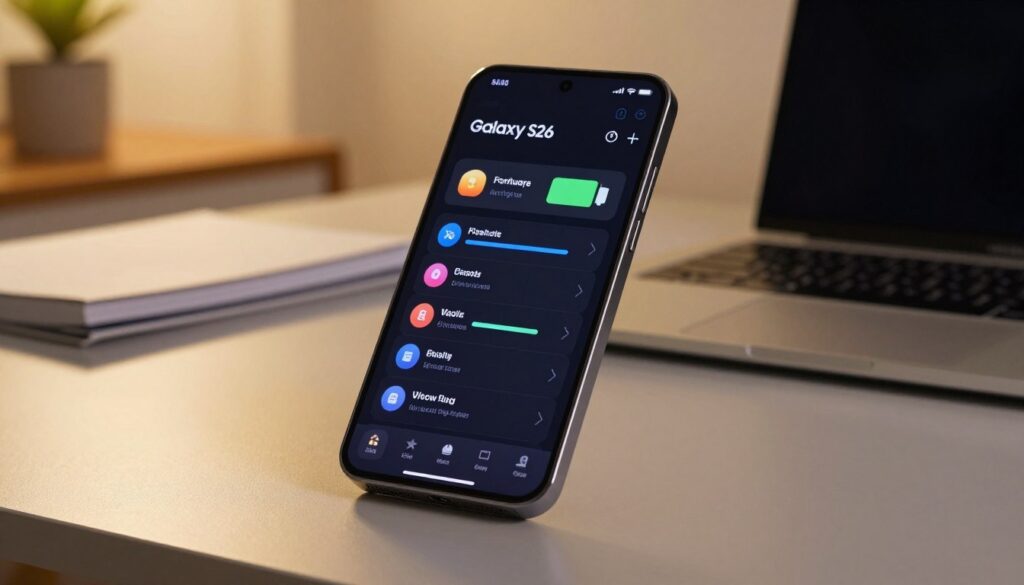
To start, open the Settings app on your device. Scroll down and tap on “Battery and device care.” Then, choose “Battery” to see how you’re using it.
You might also want to show battery percentage in your status bar. This makes it easier to see how fast your battery is draining. Inside the battery menu, tap “View details” to see a detailed list of app activity.
Interpreting App-Specific Power Consumption
The usage list shows apps by how much energy they’ve used since your last full charge. If you see an app you rarely use at the top, it might be causing your battery drain. High usage often means an app is running in the background without need.
Look for apps with high background usage. Tap on these apps to limit their background activity or stop them. Checking these stats regularly helps keep your device running well.
Optimizing Display and Refresh Rate Settings
If you’re facing a galaxy s26 battery life problem, check your display settings first. The screen is a big power user on today’s phones. A few tweaks can help your phone last longer.
Adjusting Screen Brightness and Adaptive Settings
High screen brightness uses a lot of power. Try lowering the brightness to a comfy level. This won’t hurt your eyes. Also, turn on Adaptive Brightness to let your phone adjust the screen for your surroundings.
Managing Refresh Rate for Power Efficiency
A high refresh rate makes scrolling smooth but uses more power. Go to your display settings to switch between high and 60Hz modes. Using 60Hz for everyday tasks saves energy.
Utilizing Dark Mode to Save Power
Dark Mode is key for better battery life. Since your Galaxy S26 has an OLED screen, it saves power by turning off pixels for black. This simple change helps your phone last longer and looks cool too.
Managing Background App Activity and Connectivity
Want to fix your Galaxy S26’s battery drain? Start by looking at the apps running in the background. Many apps keep syncing data or refreshing content even when you’re not using them. This constant activity eats away at your battery all day long.
Disabling Unnecessary Background Data Usage
It’s easy to limit background data for apps that don’t need to be always connected. Just go to your app settings and turn off background data for apps you don’t need. This simple step can greatly help your battery last longer.
Optimizing Wireless Connectivity Features
Features like Wi-Fi, Bluetooth, and location services use a lot of energy by always searching for signals. Turn them off when you’re not using them to save power. Also, set your location services to “only while using” for certain apps to save energy.
By managing these settings, you can fix your Galaxy S26’s battery drain. Being smart about your connectivity can make a big difference. These small changes help your device stay efficient, even on the busiest days.
Adjusting Software and System Performance Settings
Changing your software settings can really help your Galaxy S26’s battery last longer. System settings affect how well your phone uses its hardware. By tweaking these, you can find a balance between speed and power use.
Configuring Performance Profiles
Your phone has special profiles for managing energy. Go to battery settings to pick one that saves power. The “Light” profile, for example, cuts down on heat and helps if your battery drains fast.
This setting slows down your processor a bit but doesn’t slow you down. It makes your phone run smoother and saves energy for important tasks. You’ll see a big difference when you’re out all day.
Managing Software Updates and System Cache
Old software can cause your battery to drain fast. Always check for updates to get the latest power-saving features from Samsung. These updates fix energy-wasting background tasks.
Clearing the system cache also boosts battery life. Sometimes, temporary files can cause your phone to work too hard and lose power. Clearing the cache through the recovery menu gets your phone running better again.
Implementing Advanced Battery Longevity Tips
By using smarter power management, you can make your phone last longer. Keeping your lithium-ion battery healthy is key for your device’s long-term performance. Proper charging and storage habits help your phone stay reliable for years.
Utilizing Battery Protection Features
Today’s smartphones have tools to protect your battery. One great feature is the battery protection setting. It limits charging to 80% or 85%. This helps avoid damage from always keeping your battery full.
Turning on this feature helps manage your battery’s life. It might seem odd to limit charging, but it slows down aging. It’s very helpful if you often charge your phone all night.
Managing Charging Habits for Long-Term Health
Your daily charging habits affect your device’s life span. Extreme temperatures harm lithium-ion cells. Keep your phone cool while it’s charging to avoid damage.
Also, don’t let your battery completely drain before charging. Aim to keep it between 20% and 80% charged. These practices are crucial for avoiding battery damage and keeping your phone running well.
Troubleshooting Persistent Hardware or Software Glitches
When simple fixes don’t work, you need to dig deeper. If your phone’s battery is draining fast, it might be due to software issues. Finding the cause of the problem is key to fixing it.
Performing a Soft Reset
A soft reset can fix temporary problems that use too much power. It restarts your phone without losing your data or files. Just press the power and volume down buttons together for ten seconds until it turns off.
Resetting All Settings to Factory Defaults
If a soft reset doesn’t help, try resetting your settings. This action changes your phone’s settings back to how they were when you first got it. It’s a good way to fix hidden issues that use power.
To do this, go to your phone’s settings and find the general management section. Choose the reset option and pick to reset all settings. This won’t delete your photos or apps, but you’ll need to set your preferences again.
When to Contact Samsung Support
Some problems might be due to a faulty battery or internal parts. If you’ve tried everything and your phone still drains power fast, it’s time to get help. Samsung support can guide you on what to do next.
Remember, these steps can help you figure out if the problem is ongoing. If your battery health doesn’t improve after a reset, a technician can help. They can run tests to find and fix the issue.
Conclusion
Controlling your smartphone settings changes how you use your phone every day. You now know how to save battery on your Samsung device. Using these tips helps your phone last longer during busy days. Regular care stops battery problems early on.
These solutions keep your screen bright and apps running smoothly. Your phone will stay in top shape for years. Share your success with other Samsung users facing battery issues. Your experience helps others find ways to use their phones better.