
Are you worried about keeping your private data safe on your Samsung device? It’s key to know how to use secure folder technology. This is crucial for anyone needing a digital safe for sensitive files.
This feature makes a secret space on your phone. It’s separate from the main system. It’s a private place for your most private apps and documents.
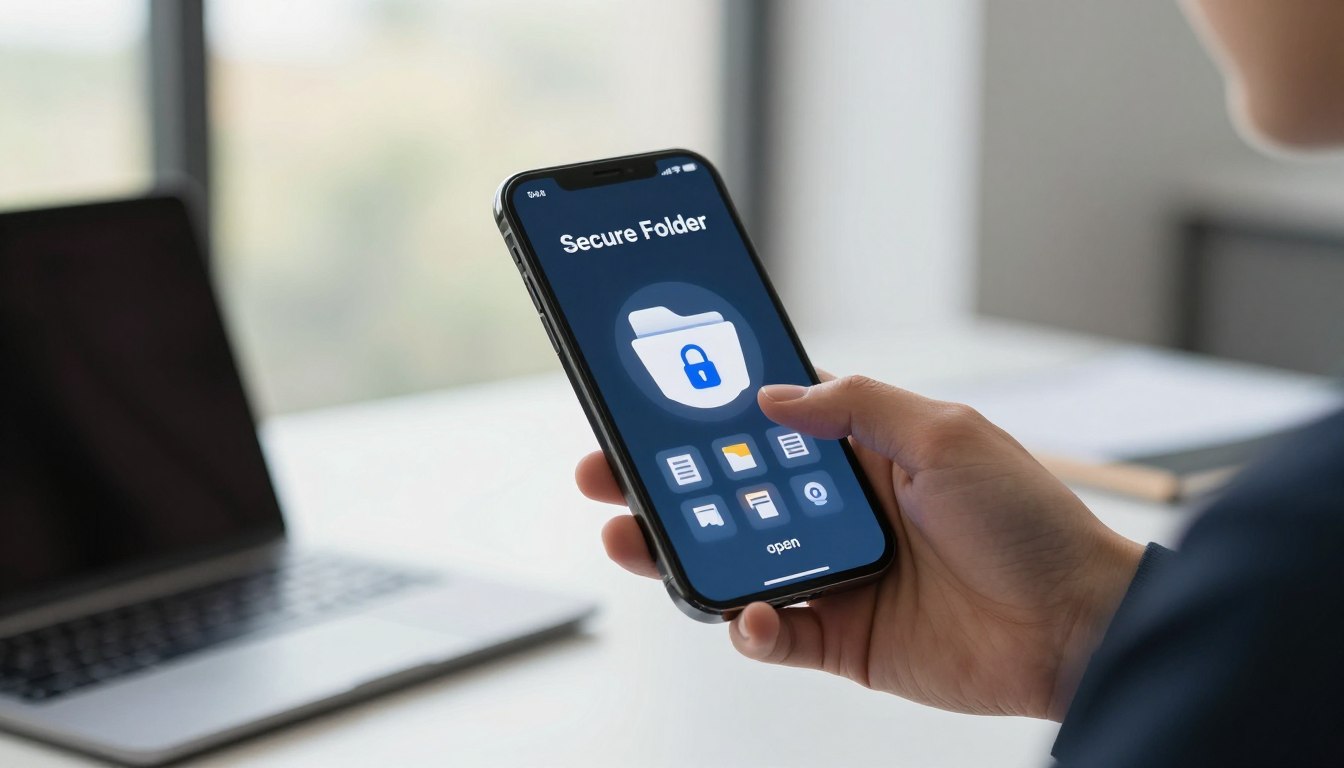
Many people feel safer once they learn how to use secure folder settings. It adds an extra layer of protection against unwanted access. You get to keep your personal info safe with just a fingerprint or face scan.
Knowing how to use secure folder well means your photos, notes, and apps stay hidden. This guide will show you how to keep your digital life safe and private.
Understanding the Secure Folder Ecosystem
To keep your mobile private, you need to know how Secure Folder works. It’s like a digital safe on your device, separate from the rest. This guide will show you how it protects your personal stuff from prying eyes.
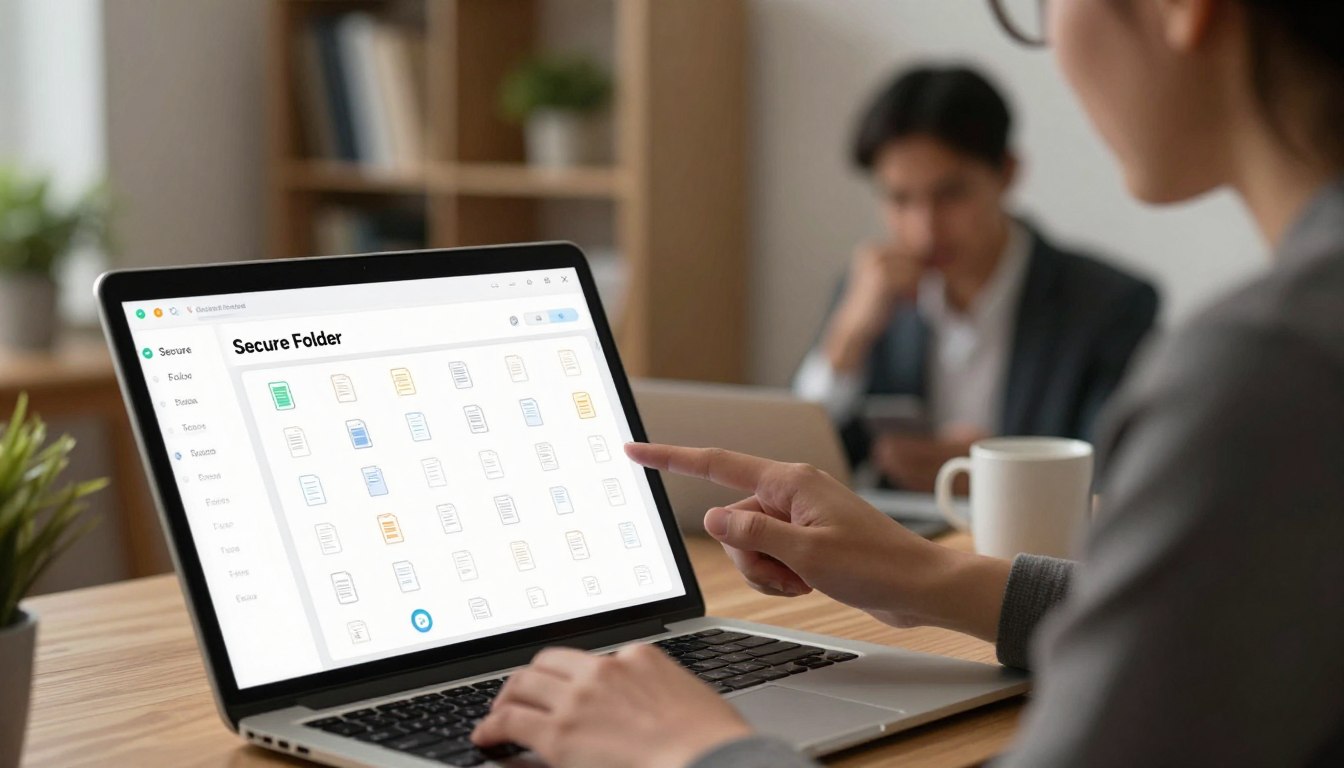
The Role of Samsung Knox in Data Protection
Samsung Knox is at the core of Secure Folder’s security. It’s built into your device’s hardware, not just software. Knox watches over your phone from the start, making sure your private data is safe.
This hardware protection means your encryption keys are safe too. Since the security is at the chip level, it’s very strong. Your files and apps are protected by top standards.
Distinguishing Secure Folder from Standard App Hiding
Many people think Secure Folder is just for hiding apps. But hiding an app icon doesn’t really protect your data. It can still be accessed by other apps or malware.
Secure Folder, on the other hand, creates a separate app instance. This means your data is safe from outside apps. This guide shows why true privacy needs this kind of separation.
Use Cases for Personal and Professional Privacy
Secure Folder helps keep your work and personal life separate. You can store business stuff in the vault and keep personal photos elsewhere. This stops your work from mixing with your personal stuff.
It’s also great for sharing devices with family. By keeping your private accounts in the vault, you protect your info. This is a key part of this guide for anyone who values their privacy.
How to use Secure Folder on your Samsung Device
This guide will show you how to use Secure Folder step by step. It’s easy to follow and keeps your private files safe. You can do it all in a few minutes using your device.
Enabling Secure Folder in System Settings
First, open your device Settings and go to Biometrics and security. Find Secure Folder and tap it to start. You’ll need to sign in with your Samsung Account to prove who you are.
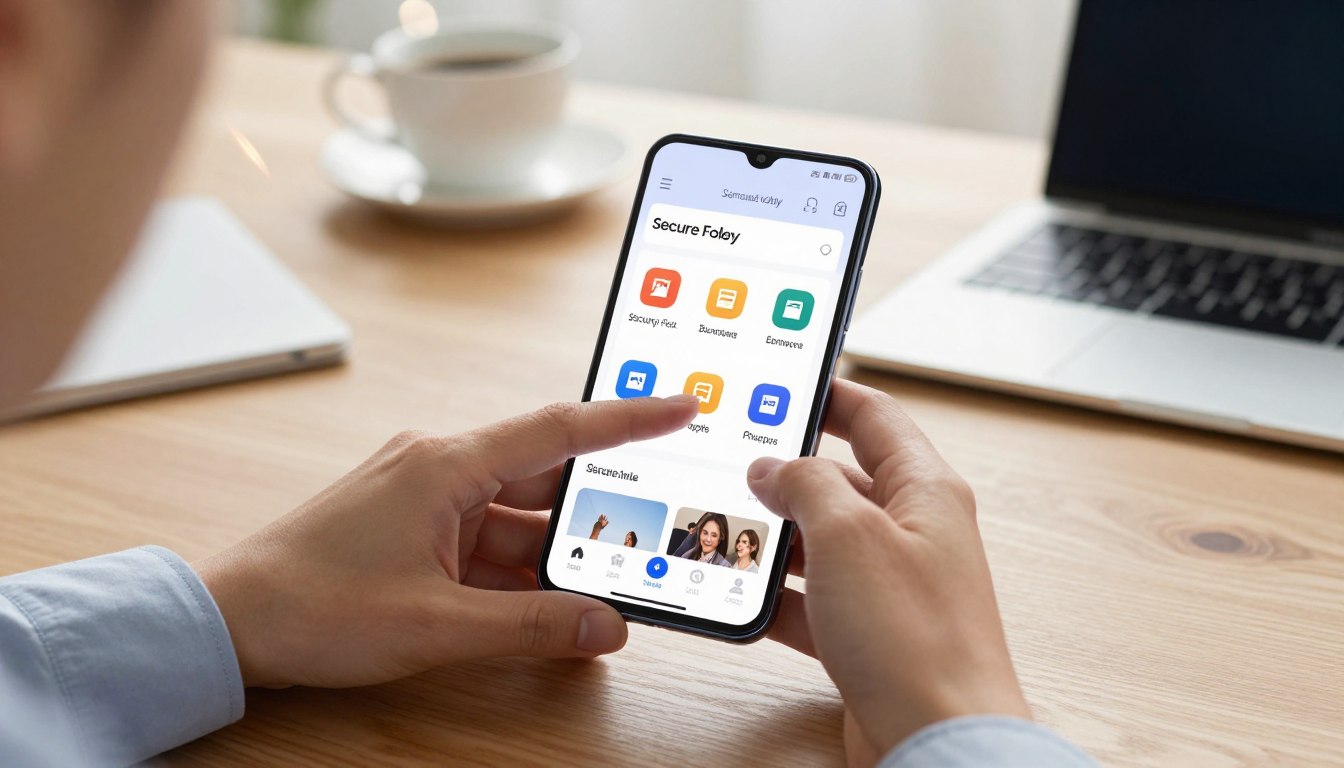
After signing in, your encrypted space is ready. This creates a special area that’s separate from your main storage. You’ll see the Secure Folder icon on your home screen or in the app drawer.
Configuring Authentication Methods
Security is key, so pick a strong way to unlock your data. You can use a PIN, pattern, or password. You can also add biometric options like fingerprint or facial recognition for easier access.
Biometrics let you get into your files fast without typing a code. Pick what works best for you, balancing security and ease. You can change these settings later if needed.
Customizing the Secure Folder Icon and Name
Make the folder less noticeable by customizing it. Open the folder, tap the three-dot menu, and choose Customize. You can rename it to something less obvious, like a generic name.
You can also change the icon to match other apps on your screen. These small changes help keep your private stuff hidden. It’s all about keeping your information personal.
Managing Your Private Data and Applications
You can turn your device into a secure fortress by managing your data and apps well. This guide helps you keep your digital space tidy and your private info safe. You can control which apps and files others see.
Adding Applications to the Secure Environment
There are two ways to add apps to your vault. You can install new ones from the Play Store or Galaxy Store while in the vault. Or, you can move apps from your main storage.
To add an app, tap “Add apps” in the vault. Pick the app you want, and it will be encrypted separately. This keeps your app data safe from your main profile.
Moving Files and Photos into the Vault
It’s easy to protect your media with the vault’s file tools. Open “My Files” in the vault to move documents, images, or videos from your main storage.
You can also pick files in your gallery or file manager and move them to the vault. This way, you can hide private photos without mixing them with your main gallery. Once moved, these files are encrypted and only accessible in the vault.
Exporting Data Back to the Main Storage
At times, you might need to move a file or photo back to your main storage. Open the vault, find the item you want to move, and select it. Then, tap the menu icon and choose “Move out of Secure Folder.”
The system will ask you to confirm the move. After confirming, the file will return to your main storage. This is useful for sharing files or photos that don’t need high protection anymore. Always check that the file has moved correctly before deleting it from the vault.
Advanced Security Measures and Best Practices
Keeping your digital life safe is more than just a password. It’s about using secure folder security measures all the time. By adjusting your settings, you keep your private info safe, even if your device is left alone.
Automating Secure Folder Auto-Lock Settings
Make sure your vault locks automatically to avoid accidental leaks. Go to the settings in your folder to find the auto-lock options.
Choose the setting that locks your folder right when the screen goes off. This keeps your data safe as soon as you stop using your phone.
Managing Notifications for Hidden Apps
Notifications can reveal sensitive info on your lock screen. You can turn off these alerts to keep your privacy intact.
In your secure environment’s notification settings, disable showing content on the lock screen for private apps.
Backing Up and Restoring Secure Folder Data
Regular backups are key to secure folder management. Use Samsung Cloud to sync your encrypted files to a safe server.
This way, you can quickly get back your data if you change devices. Make sure your cloud account is secure with two-factor authentication.
Troubleshooting Common Access Issues
Access problems can happen, like forgotten passwords or system bugs. If you’re locked out, you might need to reset your password with your Samsung account.
If software issues keep happening, you might need to factory reset your Samsung Galaxy S25. Always keep your recovery codes in a safe place to avoid losing your data forever.
Conclusion
Keeping your personal and work data safe on Samsung devices is key. Using the Secure Folder adds a strong defense for your most private info.
You now know how to handle your digital vault with confidence. By following these steps, your private files stay safe from unwanted eyes in today’s connected world.
Check your security settings often to stay ahead of new threats. Keeping your Samsung Knox up to date ensures your data stays protected.
Learning to use these privacy tools brings you peace of mind. Your mobile use stays both useful and secure when you focus on these important safety habits.