
Learning how to set up one handed mode on Samsung Galaxy hardware transforms your daily experience. This feature shrinks the display area, allowing your thumb to access every icon without any uncomfortable stretching.
Mastering this tool is essential for anyone who values efficiency and comfort. Once you understand how to use one handed mode on Samsung Galaxy, you will navigate your apps with ease. Follow this guide to optimize your interface and regain full control of your device today.
Understanding the Benefits of One Handed Mode
Do you struggle to tap the top notification bar on your big Samsung phone? You’re not alone. Smartphones have gotten really big, making it hard to use them with one hand. Luckily, there are built-in tools to help with this problem.
Why Samsung Galaxy Accessibility Features Matter
The Samsung Galaxy accessibility features are made to help everyone use their phone easily. They let you change the screen to fit your needs. This makes sure everyone can use their phone, no matter their hand size or how they use it.
Using these features helps you control your phone better. It’s not just for people with special needs. It’s for anyone who wants to use their phone more easily. Learning about these tools can make your phone use better.
Ergonomics and Daily Device Usage
Using Samsung one handed mode can make your wrists feel better when you use your phone a lot. It makes it easier to reach buttons and menus without stretching. This helps you stay comfortable and avoid injuries.
There are also tips and tricks for using your phone one-handed. You can change the screen size for different tasks. This makes your phone more useful and less likely to cause discomfort.
How to set up one handed mode on Samsung Galaxy
Setting up your Samsung Galaxy for easier use is simple. Just tweak a few settings to change how you use your screen every day. This guide will show you how to make your device fit your needs perfectly.
Accessing the Advanced Features Menu
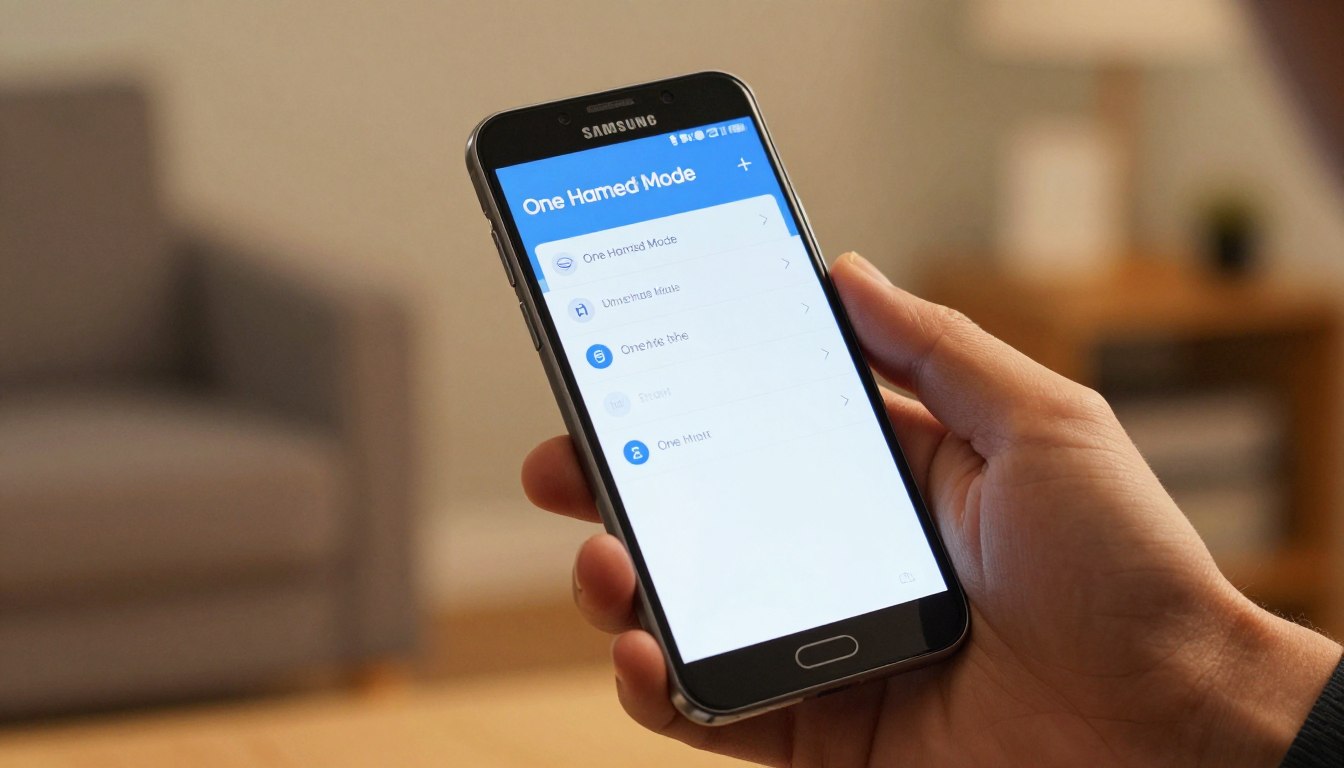
First, unlock your phone and open the Settings app. Scroll down to find Advanced Features. This menu has tools to make your phone easier to use.
In the Advanced Features menu, look for One-handed mode. If it’s not there, check for updates. Once you find it, you’re ready to set it up.
Enabling the Feature via Gesture or Button
To turn on one handed mode, pick how you want to trigger it. You can use a gesture or a button. For gestures, swipe down on the bottom center to shrink the screen.
Or, you can use a button shortcut. Double-tap the Home button to activate it. After setting it up, you can switch between these options anytime.
Navigating and Customizing the Interface
Now that the feature is active, let’s explore how to customize it. You can adjust the display to fit your palm and grip. For more help, check out the Samsung Galaxy A56 user guide for beginners.
Adjusting the Screen Size and Alignment
You can change the display size to fit your comfort. Just drag the corners to resize it. This makes the Samsung one handed mode experience better.
You can also move the window to a different spot on your screen. Tap and hold the top bar to drag it. These settings let you create a layout that’s just right for you.
Switching Between Left and Right Handed Modes
Being versatile is key when you’re on the move. Tap the arrow icon to switch the screen to either side. This makes it easy to use one handed mode on your Samsung Galaxy, no matter your hand.
The switch happens fast with just one tap. This ensures your thumb can reach every corner without strain. It’s a great way to stay productive with just one hand.
Exiting One Handed Mode Efficiently
Going back to full-screen view is simple. Just tap any empty space outside the window. This expands your display back to its original size.
You can also use your navigation gestures to close the window. Learning how to use one handed mode on Samsung Galaxy saves time. By mastering these settings, your device stays comfortable and easy to use.
Troubleshooting Common Issues
Running into tech problems when trying to make your screen smaller is common. If your screen won’t shrink, you’re not alone. Most problems are small and come from software issues or old settings.
Why One Handed Mode May Not Activate
Sometimes, enabling one handed mode is hard because of system updates. If your OS is old, the gesture software might not work right. Always check your settings to make sure your device is up to date.
Active screen overlays or display scaling settings can also cause problems. If your font size or zoom is too high, the system might not let you adjust the screen. Try setting your display scaling back to default to see if it works again.
Compatibility with Third Party Launchers
Many people like to change their phone’s look with third-party launchers. But these apps can stop one-handed navigation from working. If you got a new launcher, try switching back to Samsung’s default to see if it works.
If it works with the default launcher, the problem is with the third-party app. You might need to check the app’s settings to see if it lets system gestures work. Sometimes, updating the launcher app can fix these issues.
Resetting Accessibility Settings
If you still can’t use one handed mode, you might need to reset your settings. Resetting your Samsung Galaxy’s accessibility features can fix problems. It resets your settings to how they were when you first got your phone, without losing your files.
To reset, go to your device settings and find the general management section. Choose the reset option and pick to reset all accessibility settings. After it’s done, restart your phone and try the feature again to make sure it works.
Conclusion
Optimizing your smartphone display makes daily tasks feel effortless. By following this one handed mode tutorial, you now possess the skills to scale your interface for better reach and comfort.
You can revisit your one handed mode settings whenever your workflow changes. Adjusting these parameters ensures your Samsung Galaxy device remains a perfect fit for your hand size and specific needs.
Applying these one handed mode tips and tricks helps you maintain productivity while on the move. You gain full control over your screen layout with just a few simple gestures.
Explore these display options to see how they improve your interaction with apps and menus. Your mobile experience becomes more intuitive when you tailor the software to match your physical habits.