
Have you ever wondered how to turn off Samsung S25 quickly when a simple restart or power reset is all you need? The Samsung Galaxy S25 is packed with smart features, but managing power on your device remains essential. You will learn clear, practical ways to power down your phone without hunting through deep settings.
This short guide shows how to use the side button, the on-screen menu, and voice commands to control your device. Each method helps you handle battery life and device responsiveness with ease.
Whether you are new to the Samsung Galaxy line or an experienced user, these tips simplify the process. You will feel confident using the side button and menu options to manage power on the Galaxy S25.

Key Takeaways
- Learn one clear method to power down your phone using hardware buttons.
- Use the on-screen menu for a quick, menu-based shutdown option.
- Voice commands offer a hands-free alternative to manage power.
- Knowing these ways helps preserve battery and keep the device responsive.
- Practice each method so you can switch approaches as needed.
Physical Methods to Turn Off Samsung S25
Using hardware keys can get your Galaxy S25 into the power menu in seconds. This is the most reliable process when the touchscreen lags or the software is unresponsive.
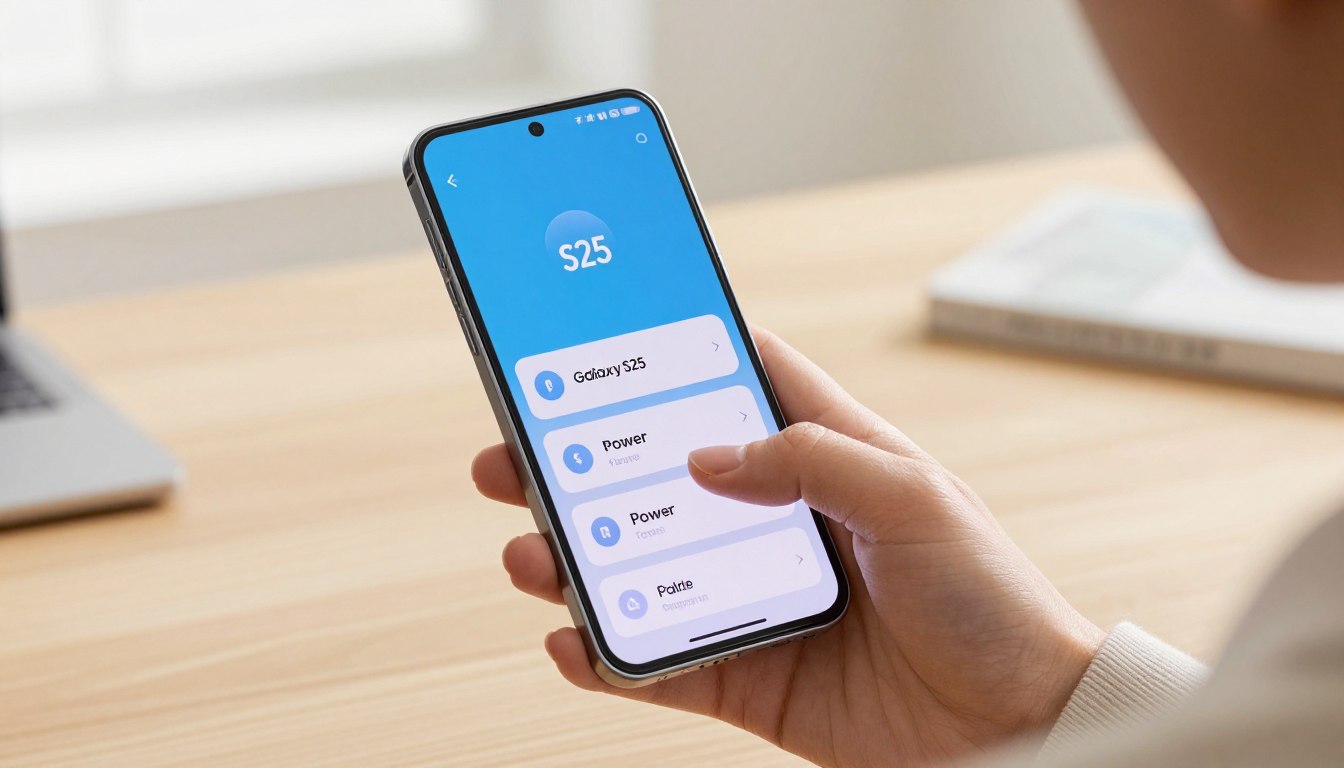
Using the Side and Volume Buttons
Press hold side and volume down buttons simultaneously for a few seconds to open the power menu. The physical buttons are on the right side of your Samsung Galaxy S25.
When the menu appears, tap power to confirm and safely power device functions down. To power the device back on, press and hold the side button until the screen lights.
Understanding the Power Menu
The power menu gives clear options like power off and restart. Using side volume buttons or hold side button combos bypasses digital assistants so you reach the menu fast.
This button-based method works across Galaxy S25 models and is handy for travel or when you need to turn Samsung Galaxy phones off without touching settings.
Using Software and Voice Commands for Power Management
You can use on-screen controls and voice assistants to manage device power in seconds. This method avoids frequent use of the side button and keeps the hardware in good shape.
Accessing the Quick Settings Panel
Swipe down from the top screen twice to open the quick settings panel. Look for the power icon in the corner of the settings panel.
When you tap power icon, a small menu appears with the power menu and related options. Choose the power option to safely power the device down without needing to press hold any physical buttons.
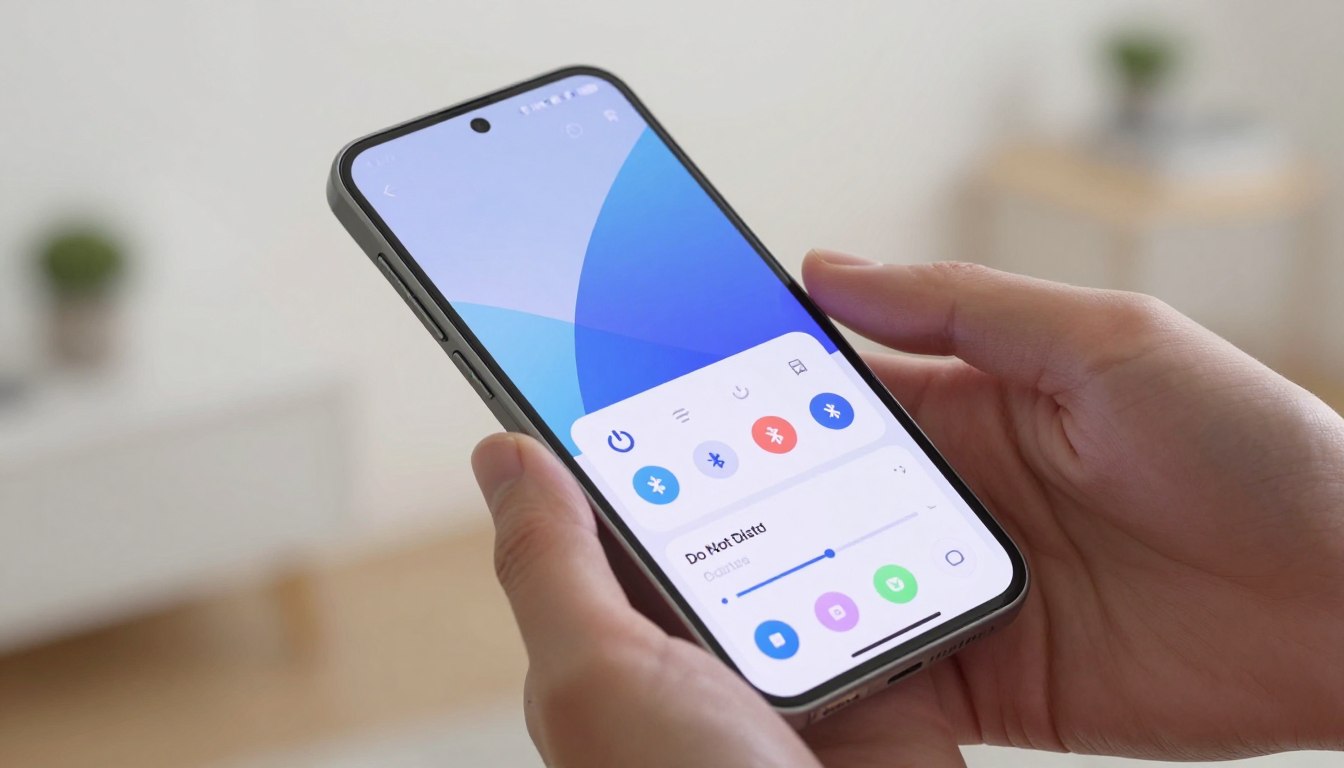
For hands-free control, ask Bixby or Gemini to “turn phone off” and the assistant will follow the command. Voice commands are handy when your hands are busy and offer a fast, software-based way to manage your Galaxy S25.
Troubleshooting and Customizing Your Power Settings
Customizing power controls and following a few recovery steps can fix most common issues you face with the Galaxy S25. These adjustments help when the screen freezes or the side button triggers the wrong action.
Remapping the Side Button
Go to Settings > Advanced Features > Side Button. From there, you can change the press hold action to open the power menu instead of launching a digital assistant.
Remapping the side button streamlines access to power options and reduces accidental assistant launches. This makes it faster to tap power when you need options like restart or shutdown.
Performing a Force Restart
If the device is unresponsive, press hold side and volume down buttons for 10–15 seconds. This force restart clears temporary software hangs and restarts the phone safely.
Use the correct side volume buttons simultaneously to trigger this process. If the screen stays frozen, the force restart is the most effective immediate fix.
Managing Battery and Software Issues
Check Settings > Software Update to install the latest patches. Updates often resolve persistent issues that affect power and performance.
If you face battery problems, charge the device before attempting a restart. The quick settings panel and the power icon remain reliable backups when physical buttons show issues.
Conclusion
Mastering simple power routines makes daily phone use smoother and less stressful. You now know how to use the side button, quick settings, and voice commands to control your device with confidence.
Customize your settings to make the process faster and protect battery life. If you hit a problem, a force restart or a software update usually fixes common glitches.
For more in-depth recovery steps and a factory reset walkthrough, see the factory reset guide. These tips will help you manage power and keep your Samsung Galaxy S25 running smoothly.